Here is the form fillable 2024 D&D Character Sheet you have been waiting for!
This incorporates the 2024 changes to the fifth edition of Dungeons and Dragons (that I call D&D 5.5) found in the new Players Handbook (PHB). If you are familiar with the previous version of my Character Sheet you will find that it has change in many ways. It is still 4 pages, 2 sheets if printed on both sides. (Note that I will be referring to the set of all 4 pages in the singular, as the “character sheet”.) Page one has all of your character’s basic information and all you need for combat other than your spells. Page two is just for equipment and treasure. Page three is Character background and notes. Page four is for magic spells. As before, it can be printed blank and filled out with a pencil, or you can fill in the forms on your device and most of the calculations will be done for you. It automatically calculates; ability and saving throw modifiers, carrying capacity and jump distances, Armor Class, Proficiency Bonus, Passive Perception, Skill check modifiers, Weapon attack bonus and damage, Equipment cost and weight, and more. It can fill in all the adventuring gear you get if you select an equipment pack (such as an “Explorer’s Pack”). In addition to that, it contains a new Autofill option that can fill in all the standard information based on your class, species and background. There is no need for a separate character sheet for each different class, or for multiclass, you only need this one sheet. (Watch for updated Class Feature Sheets in a future post.)
Update #1: 2/8/2025 Minor revisions and changes Thanks a lot to Anonymous for pointing out some errors, and I found a few more. Many were Adobe Acrobat not displaying everything the same way that PDF-XChange Editor does. And I made a few other, mostly cosmetic, changes. I also updated the instructions.
Update #2: 2/26/2025 Corrected Sub Species Sub Species was only displaying a number. Now you can select a sub species (if any are available) for the chosen Species.
Update #3: 3/7/2025 Display of Total Item Costs Corrected a problem that, when using Adobe Acrobat, the total cost of tracked items would sometimes display a huge number.
Filling in the 5E Character Sheet
These instructions are for use with the character sheet you can download above. You can print a blank Character Sheet and fill it out by hand. If you fill it out on your device, many boxes will be filled in for you. There is information at the end of this on how to use this sheet for multi-class characters.
PAGE 1
1 – Autofill/Manual Selection Box
This selection box is independent of the similar one on page 4. Be aware that one page might be set to Autofill and the other one set to Manual. Select ‘Autofill’ mode to automatically fill in portions of this page based on your choices, as described below. Choose ‘Manual’ mode to keep existing information unchanged and make your own edits. CAUTION: If you switch to ‘Manual’ mode to make a few changes and then switch back to ‘Autofill’ mode, all your changes will be lost, replaced by the ‘Autofill’ information. I recommend you leave it in ‘Autofill’ mode until you are finished with Page 1, including your weapons and armor. You can then safely change to ‘Manual’ mode and make changes and additions. You may want to make a backup copy of your sheet before making changes. Each of the numbered sections below where this selection makes a difference will include a description for both Autofill mode and Manual mode. Note: This selection box will not appear on the printed page.
2 – Your Character’s Name
The text you enter here will also appear in the same location on the other pages. The text can be entered or changed on any page.
3 – #____
Character sheet version. If you make multiple copies of your character sheet enter the version number here. Like the Character Name, this text will also appear on the other pages.
4 – Campaign Information
This is where you enter your name, the name of the campaign you are using this character in and the date it was created.
5 – XP/Milestones Selection Box
If ‘XP’ is selected the Next Level Goal will be calculated and entered for you here based on your current character level (see below). If “Milestones” is selected the text on this line will be replaced by a “Notes” section. Note: This selection box will not appear on printed pages.
6 – Ability Sores
Enter your ability scores in the boxes. All the data to the right of the ability scores will be filled in for you based on the ability scores, including your carrying and jumping stats based on your strength score. Check the little box next to the Saving Throw modifier to indicate that abilities Saving Throw Proficiency.
7 – Class
Select your Class from the drop-down box. The Class Feature box (number 11 below) will display information relevant to that class. Subclass: You can select a subclass from the drop-down menu. Autofill mode: All the information from the Class Features section in the PG for this Class will be filled in, down to (but not including) Starting Equipment. If there is any current text in any of these areas it will be removed. You can also type text into this ‘Class’ box, but if it differs in any way from one of the selections in the drop-down box any text below will be removed. Manual mode: No matter what you select or enter into the “Class’ box, existing text in this section will remain unchanged. You can change or add any text in the ‘Class’ box or any of the information below it.
8 – Species
Select your Species from the drop-down box. Sub Species: You can also type in the name of a Sub Species or select one from its own drop-down. Whatever you enter for the Sub Species has no effect on any other text. Autofill mode: All the information from the Traits table in the PHB for this Species will be filled in. If there is any current text in any of these areas it will be removed. You can also type text into this ‘Species’ box, but if it differs in any way from one of the selections in the drop-down box any text below will be removed. Manual mode: No matter what you select or enter into the ‘Species’ box, existing text in this section will remain unchanged. You can change or add any text in the ‘Species’ box or any of the information below it.
9 – Background
Select your Background from the drop-down box. Autofill mode: All the information from the Traits table in the PHB for this Background will be filled in. If there is any current text in any of these areas it will be removed. You can also type text into this ‘Background’ box, but if it differs in any way from one of the selections in the drop-down box any text below will be removed. Manual mode: No matter what you select or enter into the ‘Background’ box, existing text in this section will remain unchanged. You can change or add any text in the ‘Background’ box or any of the information below it.
10 – Level
You must enter your character’s current level in this box.
The content of this box will change depending on your character’s Class (number 7). It shows certain traits for the selected class that change based on class level and/or abilities and provides check boxes to track uses of limited use features. If no class is selected, or anything is entered into the Class box (number 7) other than what can be selected from its drop-down box, this will show the default Class Feature box which only shows a stylized die and contains an empty text box.
12 – Notes, Advantages, Disadvantages, Languages, Alignment, Hit Dice, and Hit Points
Autofill mode: Under Hit Dice, the Type and Max boxes will be filled in for you based on your Class and character level. The rest are to be filled in by you. Manual mode: All of these boxes are to be filled in by you.
13 – Proficiency Bonus, Initiative Modifier, Heroic Inspiration, Passive Perception, Death Saves, and Exhaustion
Proficiency Bonus, Initiative Modifier and Passive Perception will be calculated and filled in for you. The check boxes in Heroic Inspiration, Death Saves, and Exhaustion are for you to check off as needed during play.
14 – Armor Class
Select the type of armor you are wearing, or “Unarmored” and select “Shield” or “No Shield”. Your Armor Class (AC) is displayed in the shield symbol. It is your Basic AC + the bonus you get if you have a Shield. The Basic AC is calculated by adding together the values in the three boxes under your armor type (or “No Armor”). Your shield bonus is +2 but if you have a magic shield you can select the bonus from the drop-down menu in the OTHER box under the Shield/No Shield box. Autofill mode:Armor: When you select an armor type the BASE value will be entered in the first box. The MOD value will be filled in with your DEX Modifier if it is Light armor, and your DEX Modifier (max 2) if it is Medium armor, and “None” if it is Heavy armor. The OTHER box is for you to enter any magical + it may have. Unarmored: If you have selected “Unarmored” the BASE will be 10 and MOD will be your DEX Modifier. If your Class is Barbarian the OTHER box will be your CON Modifier, and your WIS Modifier if you are a Monk. If not used otherwise, you can use the OTHER box to enter any other modifier you may get to your AC when unarmored. (If your character is a Sorcerer, with a Draconic Sorcery subclass, enter your CHA Modifier in the OTHER box. This is the only one that isn’t done for you.) Manual mode: All of these boxes are to be filled in by you. The totals are still added up and show as your AC in the big armor class shield.
15 – Features, Traits and Feats
You can enter any information you want in these text boxes. They are intended for you to list your characters Features, Traits and Feats and any reminders you may want to include.
16 – Skills
The ability modifier to use for each different skill check is listed here. Empty circles indicate your character is not proficient in that skill. Click once on an empty circle to fill that circle, indicating that you are proficient in that skill. Your Proficiency Bonus will be added to your ability modifier for that skill check. Click on the filled circle and a slightly larger circle will be added around the filled one, indicating that you can add double your proficiency bonus to this skill check, and the number will change to reflect this change. Click on this same circle again and it will change to a half-filled circle, indicating that you add only half your proficiency bonus to this skill check and the number will change again. Click on it one more time and it will change back to not proficient. Stealth: To the right of the stealth skill is a checkbox in front of the word “Disadvantage”. This box will automatically be checked as a reminder to you if the type of armor you are wearing gives you Disadvantage on DEX (Stealth) checks.
17 – Physical Description
Refer to the information on your Species, but within those general guidelines your character can look any way that you want.
18 – Character Sketch
If your PDF reader supports it, you can click on the image area and it will pop-up a “Select Icon” menu where you can select an image you have access to. Or just draw a picture of your character in the frame.
19 – Weapons
A. Select a weapon from the drop-down menu. B. Select an Ability from the drop-down above the second column of boxes (this will apply that ability’s modifier to the attack bonus.) C. Click on the check box between the two boxes below that to also apply that modifier to the damage calculation. D. If you have proficiency in the use of this weapon, click on the circle next to “Proficient”. (This will fill in the circle and replace the word “None” in the attack bonus row with the value of your Proficiency Bonus.) E. If you weapon mastery in this weapon, click the circle next to the word “Mastery.” (This will fill in the circle.) F. If this is a magic weapon select the magical bonus from either of the drop-downs in that column. The magic bonus will show up in both boxes and be applied to the attack bonus and to the damage. G. If there are any other modifications that you want to add to the attack bonus or to the damage select the modifier from the associated box in the MISC. column. Autofill mode: The Weapon Properties, Reach and/or Range, and Damage Dice will be filled in for you. If you click the circle next to the word “Mastery” it will not only fill in the circle but it will also add the name of the Mastery Feature in square brackets to the Weapon Properties text. Manual mode: You will have to fill in the Weapon Properties, Reach and/or Range, Damage Dice boxes.
20 – Ammo Check boxes
For weapons that use ammunition, you can use these boxes to check off your ammunition as it is used.
21 – Update Calculations
All of the information filled in automatically for you should update whenever you make any change. Sometimes it doesn’t. You can press this button to force the form to update all of the calculated fields. Note: This selection box will not appear on printed pages.
22 – Clear
Be careful to not press this unless you want to erase everything from all of the fields on all pages. If you press it by accident, you may be able to recover the lost information if you press CTRL Z. This button is useful for clearing all fields and starting over, or before printing a blank form to fill out by hand. Note: This selection box will not appear on printed pages.
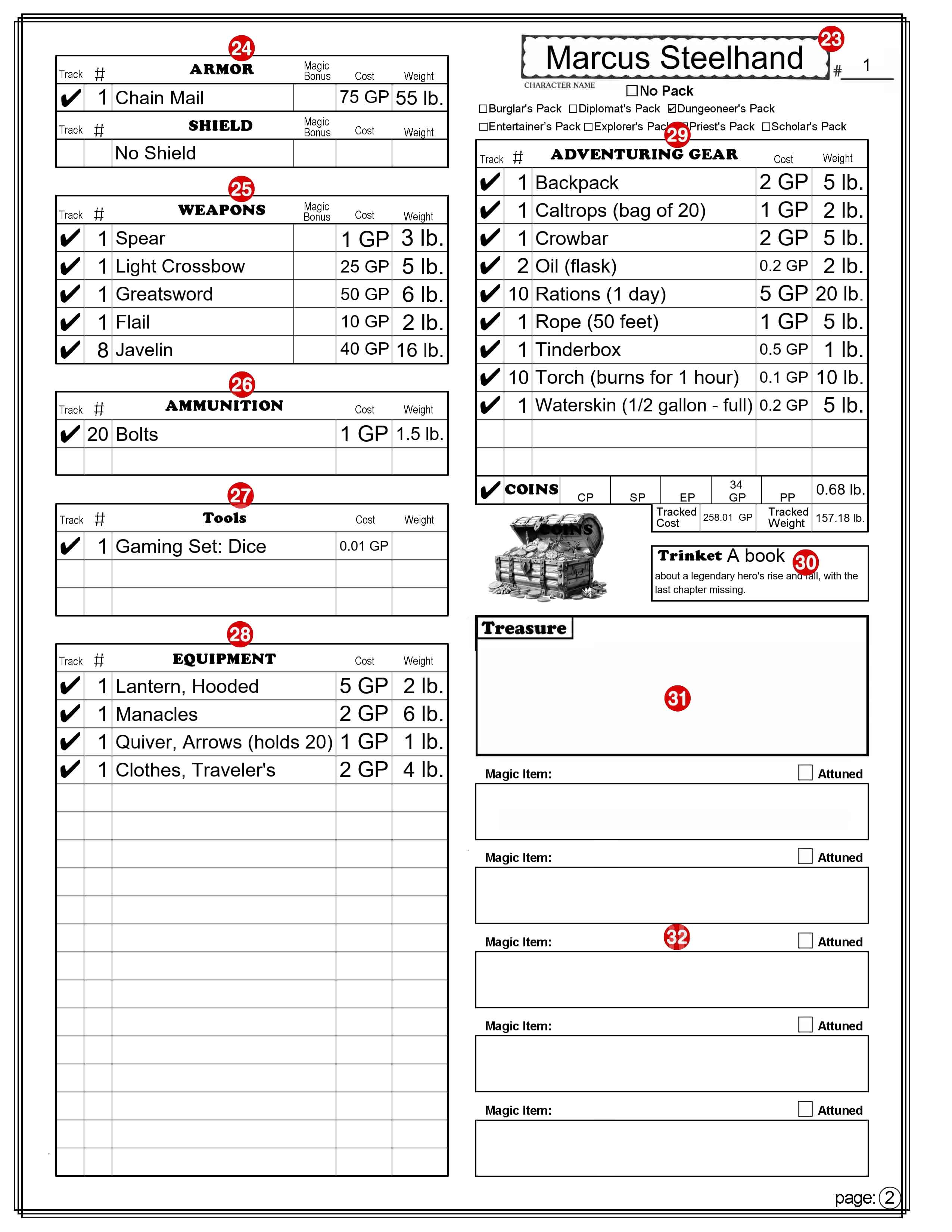
PAGE 2
Note: There is no Autofill or Manual mode for this sheet, although Adventuring Gear has a “No Pack” option that is similar to Autofill that only applies to that section.
All Equipment Lists
For all items in the Armor, Shield, Weapons, Ammunition, Equipment, and Adventuring Gear sections.
Item Selection: The drop-down will only lists items of the appropriate type. For example: Item selection in the Tools section will only list tools. If you have an item that is not on the drop-down menu, or you want to modify a name, you can type anything you want in the box. (Refer to ’29 – Adventuring Gear’ below, for exceptions.) Track: If this box is selected a check mark will appear in the box and the cost and weight of this item will be included in the boxes labeled “Tracked Cost” and “Tracked Weight,” found at the bottom of the “Adventuring Gear” section. #: Number, or quantity. You will need to enter a number in this box for how many of this item you have. If you leave this box empty (it will not display the number 0) the Cost and Weight boxes will remain empty. Magic Bonus: (Only found on the Armor, Shield, and Weapons sections.) You can select a magic modifier to apply to the item from the drop-down menu. Cost: This box will contain the cost of the item. It takes the cost from the PG and multiplies that by the number of items. If the text in the item box doesn’t match exactly any option on the drop-down, no calculations are made and you can enter or change the cost. You can’t enter the cost in cp, sp, or pp. You will need to convert the cost into its value in gold pieces, or fractions of a gp. 1 CP = 0.01 GP, 1 SP = 0.1 GP , 1 PP = 10 GP. Note: If the text in the item box isn’t on the drop-down list, the cost you enter here will ignore the number in the # column. Also note that this is the price of the item. If you later sell the item you will typically only be able to sell it for a maximum of 1/2 its original value. There are some exceptions, such as for gems and coins. Weight: This box will contain the weight of the item (in pounds). It takes the weight from the PHB and multiplies that by the number of items. If the text in the item box doesn’t match exactly any option on the drop-down, no calculations are made and you can enter or change the weight. Note: If the text in the item box isn’t on the drop-down list, it will ignore the number in the # column.
23 – Character’s Name and #____
Character’s Name and Character sheet version (see numbers 2 & 3).
24 – Armor & Shield
ARMOR: Select the armor you are wearing (or select “No Armor”). The text here will also appear on page 1 (number 14 ), and used to calculate your armor class. The text can be entered or changed on either page. If the text here doesn’t match exactly what is on the drop-down menu the AC calculation on Page 1 may be inaccurate. Magic Bonus: This will appear on page 1 as a magic + for any armor, but just as OTHER if unarmored. Exception: This value will be ignored when unarmored if your class is Barbarian or Monk. SHIELD: Select “Shield” or “No Shield”. The text here will also appear on page 1 (number 14), and used to calculate your armor class. The text can be entered or changed on either page. If the text here doesn’t match exactly what is on the drop-down menu the AC calculation on Page 1 may be inaccurate. Magic Bonus: This be added as a magic + to your armor class with or without a shield. (it can be changed on either page.)
25 – Weapons
Select your Weapons from the drop down menu. They will appear in the same order here and on page 1 (number 19). The text can be entered or changed on either page. If the text here doesn’t match exactly what is on the drop-down menu the Attack Bonus and Damage for this weapon on Page 1 may be inaccurate. Magic Bonus: This will appear on page 1 as a magic + for the weapon and can be selected on either page.
26 – Ammunition
Select your Ammunition from the drop down menu. Note that the Cost and Weight are calculated based on the cost and weight of one item and most ammunition is sold in bundles of multiple items. So if, for example, you purchase 20 arrows, be sure to enter 20 in the number column to get an accurate cost and weight calculation.
27 – Tools
Select any Tools from the drop down menu.
28 – Equipment
Select Equipment from the drop down menu. You may want to first enter your starting Equipment in the Adventuring Gear section. Both sections contain the same drop-down list of items.
29 – Adventuring Gear
This section is to automate the selection of bundles of items that are available as “Equipment Packs” in the PG, many of which are available options with your chosen background. Selecting a Pack: When you select a pack (by checking the box by the name of the pack) all of the Number, Name, Cost, and Weight boxes in this section will be cleared and replaced with the items available in that pack. As long as one of the packs is selected you can’t make any changes to this list. Selecting “No Pack”: When you select “No Pack” the “Adventuring Gear” section will function exactly the same as the “Equipment” section. It is important to note that this does not clear any of the current information in this section so you could, for example, select the Explorer’s Pack and then select No Pack, leaving all the items that came with the Explorer’s Pack. You could then remove, add or change items as you choose. COINS: The coins section at the bottom of the “Adventuring Gear” section is unaffected by the selection of any Pack. This row is where you can track your money, in the form of CP (Coper Pieces), EP (Electrum Pieces), SP (Silver Pieces), GP (Gold Pieces), and PP (Platinum Pieces). Tracked Cost & Tracked Weight: These show the Totals (in GP and pounds) of all the items you have checked for tracking. This is an easy way to see how much weight you are carrying. You could easily choose to not track items that you have in a bag of holding for example, or items you own but are not currently carrying. Another tip; if you are on a shopping spree, you can select the items you are thinking of buying and only select them to track. That will give you a quick cost total.
30 – Trinket
There are two text fields here. The upper one is one line for a short mane and the larger one for a more lengthy description.
31 – Treasure
Like trinket (number 30) this also has two text fields, but more room for listing several items.
32 – Magic Items
There is space here to list 5 magic items. There is a field above the box for the item’s name and a larger text field in the box for a description. The check box beside the word “Attuned” can be checked if you are attuned to the magic item. (You can be attuned to no more than 3 magic items.)
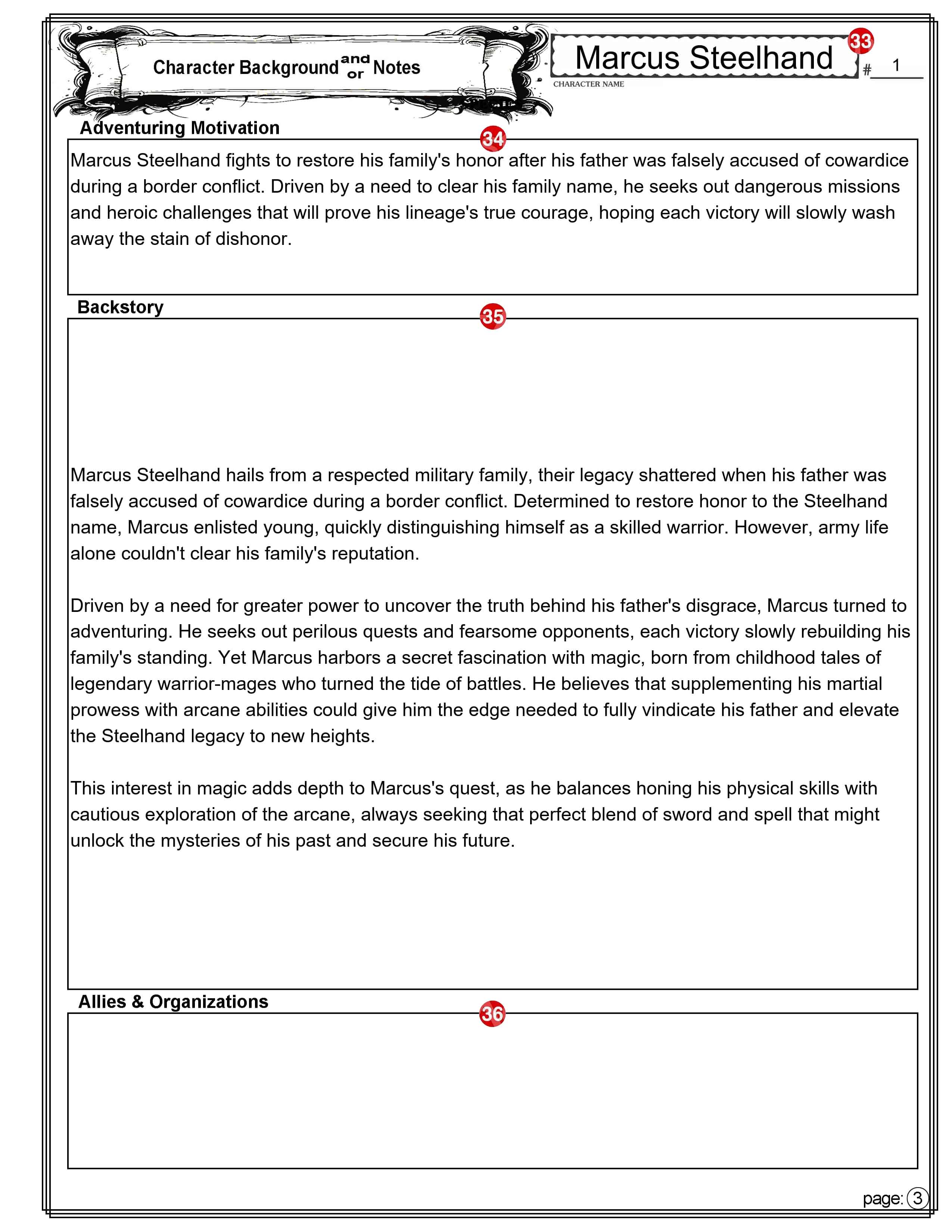
PAGE 3
33 – Character’s Name and #____
Character’s Name and Character sheet version (see numbers 2 & 3 on page 1).
34 – Adventure Motivation
This is a good place to describe why your character has chosen to become an adventurer.
35 – Backstory
Many players like (and some DMs require you) to come up with a character backstory. Players create backstories for their D&D characters to add depth, motivation, and personality to their roles in the game. A well-crafted backstory can enhance roleplaying, provide plot hooks for the DM, and make the character more engaging for both the player and the party.
There is plenty of room here to also add any notes about your character that don’t easily fit elsewhere on the character sheet.
36 – Allies and Organizations
A place to list the names and something about the other Player Characters (PCs) in the game, along with who the character belongs to. There may be organizations in the game world that you want to remember. Some may be friendly and some not.
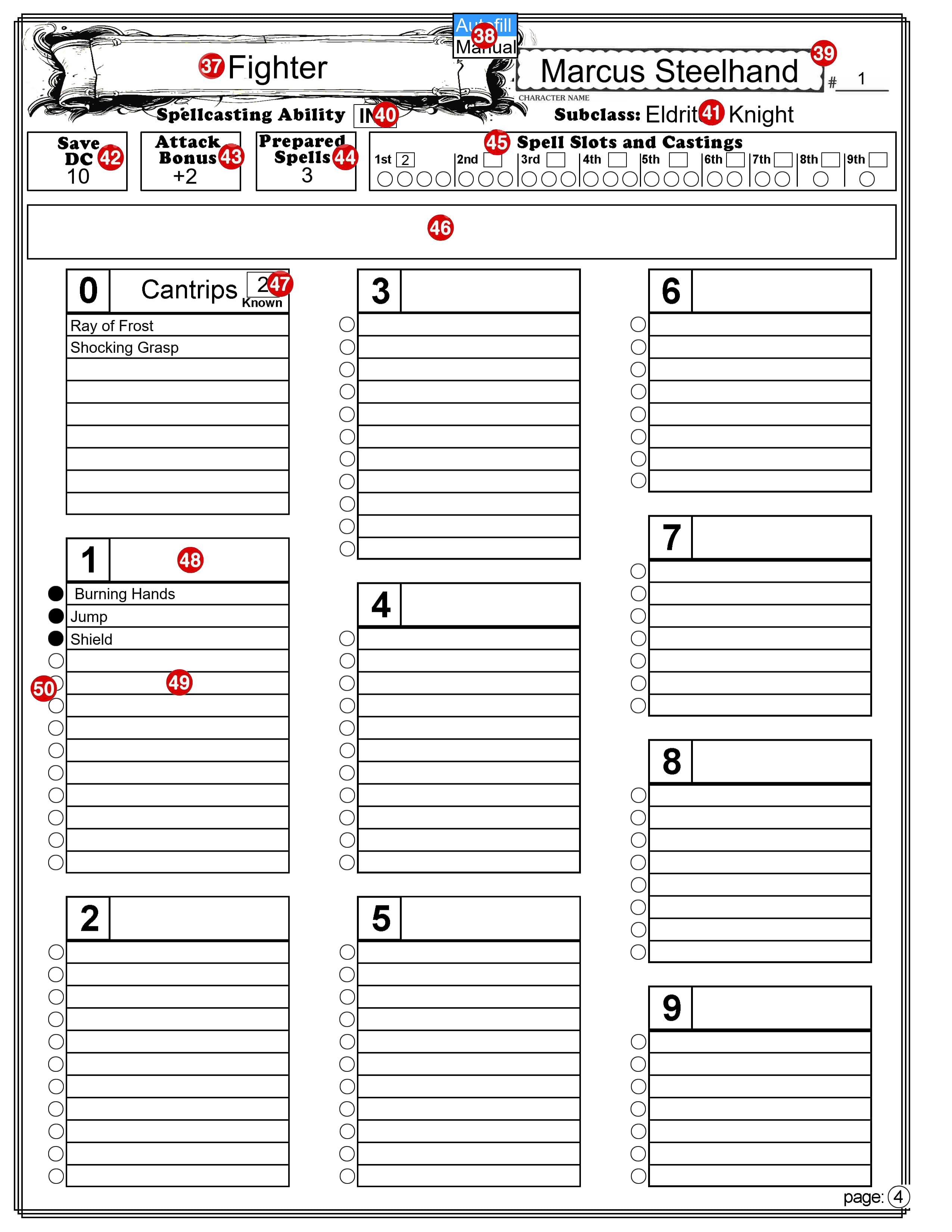
PAGE 4
37 – Your Character’s Class
This displays your character’s Class at it appears on page 1 (see number 7 on page 1). To change it, go to page 1.
38 – Autofill/Manual Selection Box
Select ‘Autofill’ mode to automatically fill in portions of this page based on your choices, as described below. Choose ‘Manual’ mode to keep existing information unchanged and make your own edits. Note: This selection box will not appear on printed pages.
39 – Character’s Name and #____
Character’s Name and Character sheet version (see numbers 2 & 3 on page 1).
40 – Spellcasting Ability
Autofill mode: This will show the ability used by this class of spellcaster. You can’t change the text. Manual mode: You can change the text,
41 – Subclass
Autofill mode: This will reflect the sub-class that is on page 1. Manual mode: The text in this field is fully editable.
42 – Save DC
Autofill mode: The spellcaster’s save DC and attack bonus is calculated and displayed here. Manual mode: You can change the number.
43 – Attack Bonus
Autofill mode: The spellcaster’s attack bonus is calculated and displayed here. Manual mode: You can change the number.
44 – Prepared Spells
Autofill mode: If the spellcaster has a limited number of spells they can prepare, that number is displayed here. You cannot change the number. Manual mode: You can change the number.
45 – Spell Slots and Castings
Autofill mode: The spellcaster’s number of spell slots is calculated for each spell level and displayed here. You cannot change the numbers. Manual mode: You can change the numbers. Castings: The check boxes are for you to use during your game to check off the spell slots as you use them.
46 – A space for notes
This area is where you can enter notes specific to your spellcasting features and abilities.
47 – Number of Cantrips
Autofill mode: The number of cantrips you can know is calculated based on your class level is calculated and displayed here. You cannot change this number. Manual mode: You can change the number.
48 – Another space for notes
This space at the top of the list of spells of each level is for any notes you may want to keep regarding spells of this level.
49 – Spell List
You can enter the name of the spells you have access to for each spell level. You can enter anything you want here. You might want to include the page number where the spell can be found in the PHB. I like to include things like [R] for ritual and [C] for concentration.
50 – Prepared Spells
If your Class requires you to prepare a certain number of spells from your list of spells, you can indicate the prepared spells by filling in the circle (by clicking on it).
Multiclass
To use this character sheet for a multiclass character there are two options.
Option 1. One way is to simply switch to Manual mode and enter everything any way you want. Option 2. To take full advantage of the features available on this character sheet I recommend the following:
Create a level 1 character in Autofill mode. Enter all its weapons, armor, and equipment. Then, if you want more levels in this class before adding a second class, go ahead and add them now.
When you are ready to add a second class switch to Manualmode (if you haven’t already).
In the Class box (number 7) add the level for the current class and the name of the second class and its level. For example, if you have a third level Barbarian and add two levels of Sorcerer you might enter Barbarian,3 Sorcerer,2.
Make changes as required to the other class related features on this section. You can delete anything that no longer applies or that you don’t need to reference.
The Class Feature box (number 10) will change to allow several lines of text. You can use this area to enter information you want to keep track of, or that won’t easily fit in other places on the sheet.
Enter the combined level of all of your classes in the “Level” box (number 12). This is important because many calculated values are based on this.
On page 4, select “Manual” mode and make any needed changes.
Final Comments
The main thing to remember is that the character sheet is yours. Use it in any way that makes sense to you. You can write outside the boxes, use circles and arrows, scribble in the margins, or use it in any way that you choose. Also, you don’t have to completely fill out every box before you start playing. If you never decide on your character’s eye color, it won’t affect the game. [As a DM, I do strongly recommend that you give your character a name before your second gaming session. I have played too many times with one or more “no name” characters. This can be a distraction.]
Here are a couple of tips. First, use pencil instead of ink. Many things can happen during an adventure that can cause things to change so keep an eraser handy. Second, if you can cast spells, you might want to use one or more weapon boxes on page 1 for quick reference to your favorite offensive spells.
Having problems? Occasionally users of my previous Character Sheet would report issues with getting everything to work. The problem has typically been with the PDF reader they are using. Problems with the PDF reader in their browser were common. If you have access to a desktop computer running Windows, I recommend you first download a copy of the file to your hard drive. Then open the file using your preferred PDF reader. The most popular one is the free “Adobe Acrobat” PDF Reader. This Character Sheet has been tested on that and it all appears to work. If you are curious, I created this using PDF-XChange Editor.
Call to action. I’m always looking to improve my resources for the D&D community! I would love to hear your feedback on this new character sheet. Let me know what you think in the comments below. If you encounter any issues using the sheet, please report them so I can address them. And if you have any suggestions for improvement, I’m all ears! Your input helps me create the best possible tools for fellow Dungeon Masters and players.
Hi, as always thanks for you hard work, we all know that you pretty much do this for free, so I really think words aren’t always enough for all of this. I’ve been using your character sheets for as long as I can remember playing. With that out of the way, I hope you’re into hearing some constructive criticism, first of all the Passive Perception autofill box is not tied to Perception but to Dexterity. The only others things I noticed are: in the class section for the Druid, there are only two boxes for keeping track of the Wild Shape uses, when you can reach 4 possible uses in D&D 2024; the extended version for notes and Advantages and Disadvantages between the first pages was very useful, in the older versions and, finally, unfortunately I couldn’t in any way insert and image in the intended box, no matter what kind of file I tried. Thanks again for everything you created during these years and for having spent time reading this far too long comment!
Thank you very much for your comment. I really appreciate it! I am just about to post a similar character sheet for Tales of the Valiant. Then I will return to this and make the corrections you pointed out. I was considering, on the revision, leaving off the Starting Equipment from page one. That will provide room for me to add extended notes and Advantages and Disadvantages. I would very much like your opinion on that proposed change.
Sounds like a very good idea to me, in fact, as cool as it is that the Auto function can do so much work on for you on his own, many infos it compiles in the Starting Equipment box can already be very well listed and presented in the second Page of the file. Thanks AGAIN for you immediate response. Have a good day!
Thanks. I am always glad to hear from players. So many never take the time to comment.
Please note some of the errors on this sheet that were pointed out in an earlier comment. I will be updating this file as soon as I get those errors (and others I have found) corrected, so check back on this post in a week or two to see if the revised file is available.
This is by far the best character sheet I’ve ever used for any TTRPG! I have a few notes for revisions as well. It seems that the coins sum function breaks upon tracking the close to 30 total items (across equipment, weapons, armor, gear) leading to it summing as 129.04399999999998. I tried to add a fractional copper, but the input doesn’t get to a low enough digit to get it to round back to a whole number. Also, the word coins is super imposed a second time on top of the treasure chest lid image below the coins section.
Well, I tried again and the issue seems resolved. I can’t tell if it is the file version or that I downloaded PDFExchange Editor that you mentioned. I didn’t think it was the file because the name didn’t change. Perhaps a version indicator would help or I’m blind to the renaming. Either way I rebuilt the sheet and it’s humming.
Thank you for your kind comments. I’m glad you like this character sheet. I’m sorry for the problems you were having but happy to learn that you have resolved the problem. I have 2 comments regarding what may have fixed your problem. 1) It may have been the version of the file that you were using. I noticed the problem you mentioned when I was testing it earlier this month on “Adobe Acrobat” PDF Reader, and replaced the file with one that (I believe) solved the problem. It uses a version indicator like you mentioned. The revised file is named “5.5-character-sheet_v2.pdf”. Notice the “_v2” at the end of the name. That indicates that this is version number 2. The first version did not have any version number. 2) It may have been the PDF reader you were using. Like I said, I didn’t have this problem when using PDF-XChange Editor. I found that this was not the only thing Adobe Acrobat wasn’t calculating properly. I had to go back and change (simplify) several areas where Acrobat couldn’t properly use the JavaScript (the programming language used by both Acrobat and PDF-XChange) that I had used. I apologize for the problems I caused you. Now that I am aware of the issues with Acrobat I will be more vigilant in my testing of the PDFs I make in the future to assure that they will function properly in Acrobat. Please continue to comment on any issues you find, they are much appreciated.
P.S. I am glad that I could turn you on to PDF-XChange Editor. I have no relationship with that company, but I have been using their product for several years now and much prefer it to Adobe Acrobat. They once had a simple free reader, but now it appears they dropped that product and their free product is just their editor with many locked features.
I just made an update to the file. Refer to Update #2 above. Filename ends in “_v3”. It doesn’t effect any of your issues, but I didn’t want you to miss it because it also removes the word “COINS”, you pointed out. Thanks again.
Hi, just a heads-up, even though the 3.0 version is quite a welcomed improvement! It unfortunately don’t let modify the names for armors and shield, while maintaining their AC bonuses anymore.
And, regarding weapons, you cannot transfer the Ability Modifier to the Attack Roll in any way I know, it just remains weirdly blank.
Well, enough with petty complaints, keep up the wonderful work, you’re the best!
I would really like to know if there’s a way to support all of your hard work on this website. Thanks again for reading!
Thanks. I think the new problems may, somehow, be caused by my compressing the file before I posted it. Please let me know if you notice any other problems. As you may have guessed, I am working on this alone and don’t have anyone testing it before I post the revisions. I’ll jump over to that right now and see if I can identify and fix those problems. I will try to post an update later today. If you want to help, just tell your friends. If you feel the need to further support this site, I have a Ko-Fi site where you can buy me a coffee (or donate any amount you choose) and, if you really want to help, you can select to make it a monthly re-occurring donation. Here is a link to the site: https://ko-fi.com/ronnyhart
I’m sorry. I can’t seem to be able to duplicate your problem. 1) “It unfortunately don’t let modify the names for armors and shield, while maintaining their AC bonuses anymore.” On the copy I downloaded from the site, it is working as intended. However, you can change the name of the armor, or shield without it changing the AC bonuses by first changing to Manual mode. 2) “you cannot transfer the Ability Modifier to the Attack Roll in any way I know, it just remains weirdly blank.” The ability modifier will remain blank until you select an Ability from the drop-down above the second column of boxes (this will apply that ability’s modifier to the attack bonus.) and if you want to also apply the bonus to damage you must check the box between the attack (top) row and the damage (bottom) row. Make sure you have entered you character level and your STR and DEX scores. You might hit the “Update Calculations” button on the bottom of the sheet. Also download a fresh copy of the PDF file, it could have gotten corrupted when you first downloaded it. If this doesn’t solve your problems, let me know, and let me know the name of the pdf file and which PDF reader you are using. If you are having this problem I am sure others are too. Thanks for your help.
Hi. First of all thank you for creating such a wonderfull Character sheet.
On the v3, i have encountered only 2 problems, the AC is not letting me choose any type of armor, only displaying a 1, and the tracking cost of items only display a huge number, nothing similar to the actual value of the equipement.
Is there something i can do to resolve the AC problem?
Thanks for letting me know about these issues. I think I have fixed the problem of “the tracking cost of items only display a huge number.” This was due to the way floating-point arithmetic works in JavaScript, which can sometimes lead to small precision errors. I have fixed it. By the way, I couldn’t duplicate the error when using PDF-XChnge Editor, but I pops us from time to time when using Adobe Acrobat.
Before I post the corrected PDF file, I need more information regarding your other issue: “the AC is not letting me choose any type of armor, only displaying a 1.” I have not been able to duplicate that error. Yes, there is something you can do to help me resolve the AC problem. Can you please provide me with more information? Specifically: 1) What is the full name of the PDF file you are using and have you downloaded it to your computer? 2) What device are you using (Desktop PC, Laptop, Tablet, phone, etc)? And what operating system? 3) What the specific name of the PDF reader are you using? Then please do this: A) Download a fresh copy of the PDF file from this page. B) Before entering anything else on the Character Sheet, select “Padded Armor” from the drop-down. If it only shows the number 1, or a list of numbers, I need to know what you are seeing. If it does anything else, please describe what it is doing on your devise. C) If it is working now, can you make it fail? If so, please let me know what you are doing, specifically, so I can duplicate the problem. I really want to fix this for you, but I can’t fix it if I can’t find the problem.
Would be awesome if the 5e character sheets get an update to auto-calc like the 5.5 versions. A lot of people are sticking with 5e for the foreseeable future. What do you think?
That is an excellent idea. I briefly considered that but decided against it. However, the reason was mainly because of the amount of work involved. (I’m basically lazy.) You are right that many (including myself) are not moving to 5.5. I am in the process of moving my on-going campaign from D&D 5E to Tales of the Valiant, but it is still, basically, 5E with some enhancements. For, what I think may be the majority if players who will be sticking with 5E, I will create a new character sheet, similar to this one, for D&D 5E! Thanks for giving me the gentle push in that direction that I needed. It will take me a few weeks before I can start on it though. I am nearly finished with the next adventure in my “It’s About Time” campaign (still 5E by the way). And it looks like work at my day job may be picking up. Stay tuned.
You will have to: 1) Turn on “Manual” mode on the Autofill/Manual Selection Box [Please note the Caution above in the instructions for the Selection Box] 2) Type “Unarmed Strike” on the weapon line 3) select Proficient 4) Select “STR” from the drop-down 5) Check the box between the two boxes on the second column (to apply the STR bonus to damage) 6) enter “1” for the Damage Dice 7) Enter the Reach as 5 ft. 8) Enter the Damage Type as “B” (for bludgeoning)
Let me know if you have any other questions. Happy gaming!
I’m loving these sheets so far and have been using them for several months for a campaign. There are a few things I wish could be changed though:
Even in manual mode, there are several places where I can’t change the numbers. A great example is Initiative. I’m playing a Gloomstalker Ranger which adds my WIS mod to initiative (as well as DEX); however, there is no way for me to edit the initiative field.
Another example is skills & saves. Again, even in manual mode, the sheets will not allow me to actually change the plus to my saves or my skills, meaning that Stone of Good Luck benefits can’t actually be reflected on my printed sheets.
The languages block is also painfully small… I’m only a lvl 6 character but already I’ve run out of room completely for adding languages.
Thank you very much for your thoughtful comment. I must admit that I completely overlooked the need to change those fields manually. Based on my current workload, it may be several weeks before I can make these changes to the sheet.
You could help me by answering couple of questions. But first, let me explain why those fields are not now editable, even in manual mode.
My goal with manual mode was to have as many calculated fields as possible remain auto-calculating, so changes in them that happened on your character level and ability scores changing would still happen. At first blush, it looks to me like, to keep that functioning, I will have to add separate input fields on the sheet, along with labels for them, for a miscellaneous modifier for each of those calculated fields. That is to say, a modifier for initiative, one for each ability save, and one for skills.
My question is do you think there needs to be a separate miscellaneous modifier for each skill, or will a single one that applies to all skills do? The other question is; You said that initiative, saves and skills were just examples. Are there other calculated fields where you feel I need to add a separate miscellaneous modifier?
I will have to move some things around to make room for more languages and all these new modifier slots. Is there information in the Class, Species, or Background sections that you feel I could leave out?
I’m sorry but no, I’m not going to be adding anything from Xanathar’s Guide or from the 2014 Player’s Handbook, or anything from Unearthed Arcana or any other source. I’m afraid that would become a never ending task. Anything published before 2024 might conflict with the 2024 release of the Players Handbook (what I call D&D 5.5). But I might be persuaded to add more content if I get a lot of requests for something from any official new 5e source, not Unearthed Arcana. You can however enter the information from Xanathar’s or any other source by simply turning off Autofill.
I’ve always loved using your character sheets! I’ve been using the original form fillable Paladin sheet with the typo for the longest time.
I’m here to ask if there is a way to get this to go beyond Level 20? I have a campaign where we’re doing demi-god level adventures at level 21 and the sheet isn’t allowing me to go beyond 20.
Thank you for your question and I am very glad to hear that you are enjoying these character sheets. I regret to say that there is no current way to go beyond level 20. The reason for that is that there are no rules in the PHB for levels over 20th and there are too many calculations done on the sheet that base the calculated value on the character’s level. That being said, I guess what I would do for a higher level character is this: 1) I would fill in the sheet as normal but leave the level box blank. It treats no entry for your character level as a level 0. It also leaves any calculated value of 0 blank. 2) I would either print it and fill in the blanks with a pencil, or I would use whatever tool my PDF viewer provided to place text onto a PDF to fill in the blanks.
OR, I would print an entirely blank sheet and fill it all in with a pencil.
The only other option would be for me to revise the PDF by removing the upper limit for levels and wherever it calculates a value based on the level, revise the code to treat levels above 20 as level 0, and make it user editable. I’m not sure how to do that. When I have attempted it before the problem I ran into is that every time you change anything, the PDF re-calculates all the values which would result (in this case) always going back and replacing whatever you entered there with a 0. Or, maybe I could make it not calculate those values when the page was set to Maunal instead of Autofill. Basically that is more work than I want to do, and I’m not sure I could could do it successfully.
Hey, for some reason the Subclass and Subspecies drop downs aren’t working correctly.
It isn’t a big deal, since they don’t have any autofills associated with them, but I cannot get Subclasses to give me anything except for Sorcerer subclasses. I cannot get Subspecies to get me anything except for Gnome subspecies.
I’ve used Brave browser and Okular viewer and the glitch persists in both programs.

















 Dungeon Master Assistance
Hi, as always thanks for you hard work, we all know that you pretty much do this for free, so I really think words aren’t always enough for all of this.
I’ve been using your character sheets for as long as I can remember playing.
With that out of the way, I hope you’re into hearing some constructive criticism, first of all the Passive Perception autofill box is not tied to Perception but to Dexterity.
The only others things I noticed are: in the class section for the Druid, there are only two boxes for keeping track of the Wild Shape uses, when you can reach 4 possible uses in D&D 2024; the extended version for notes and Advantages and Disadvantages between the first pages was very useful, in the older versions and, finally, unfortunately I couldn’t in any way insert and image in the intended box, no matter what kind of file I tried.
Thanks again for everything you created during these years and for having spent time reading this far too long comment!
LikeLike
Thank you very much for your comment. I really appreciate it! I am just about to post a similar character sheet for Tales of the Valiant. Then I will return to this and make the corrections you pointed out. I was considering, on the revision, leaving off the Starting Equipment from page one. That will provide room for me to add extended notes and Advantages and Disadvantages. I would very much like your opinion on that proposed change.
LikeLike
Sounds like a very good idea to me, in fact, as cool as it is that the Auto function can do so much work on for you on his own, many infos it compiles in the Starting Equipment box can already be very well listed and presented in the second Page of the file.
Thanks AGAIN for you immediate response. Have a good day!
LikeLike
Thank you so much for the work you put in to these character sheets. I’ve managed to stay super organized in my games.
LikeLike
Thanks. I am always glad to hear from players. So many never take the time to comment.
Please note some of the errors on this sheet that were pointed out in an earlier comment. I will be updating this file as soon as I get those errors (and others I have found) corrected, so check back on this post in a week or two to see if the revised file is available.
LikeLike
This is by far the best character sheet I’ve ever used for any TTRPG! I have a few notes for revisions as well. It seems that the coins sum function breaks upon tracking the close to 30 total items (across equipment, weapons, armor, gear) leading to it summing as 129.04399999999998. I tried to add a fractional copper, but the input doesn’t get to a low enough digit to get it to round back to a whole number. Also, the word coins is super imposed a second time on top of the treasure chest lid image below the coins section.
LikeLike
Well, I tried again and the issue seems resolved. I can’t tell if it is the file version or that I downloaded PDFExchange Editor that you mentioned. I didn’t think it was the file because the name didn’t change. Perhaps a version indicator would help or I’m blind to the renaming. Either way I rebuilt the sheet and it’s humming.
The BEST sheet! Thank you for all you do.
LikeLike
Thank you for your kind comments. I’m glad you like this character sheet. I’m sorry for the problems you were having but happy to learn that you have resolved the problem. I have 2 comments regarding what may have fixed your problem.
1) It may have been the version of the file that you were using. I noticed the problem you mentioned when I was testing it earlier this month on “Adobe Acrobat” PDF Reader, and replaced the file with one that (I believe) solved the problem. It uses a version indicator like you mentioned. The revised file is named “5.5-character-sheet_v2.pdf”. Notice the “_v2” at the end of the name. That indicates that this is version number 2. The first version did not have any version number.
2) It may have been the PDF reader you were using. Like I said, I didn’t have this problem when using PDF-XChange Editor. I found that this was not the only thing Adobe Acrobat wasn’t calculating properly. I had to go back and change (simplify) several areas where Acrobat couldn’t properly use the JavaScript (the programming language used by both Acrobat and PDF-XChange) that I had used.
I apologize for the problems I caused you. Now that I am aware of the issues with Acrobat I will be more vigilant in my testing of the PDFs I make in the future to assure that they will function properly in Acrobat. Please continue to comment on any issues you find, they are much appreciated.
P.S.
I am glad that I could turn you on to PDF-XChange Editor. I have no relationship with that company, but I have been using their product for several years now and much prefer it to Adobe Acrobat. They once had a simple free reader, but now it appears they dropped that product and their free product is just their editor with many locked features.
LikeLike
I just made an update to the file. Refer to Update #2 above. Filename ends in “_v3”. It doesn’t effect any of your issues, but I didn’t want you to miss it because it also removes the word “COINS”, you pointed out. Thanks again.
LikeLike
Hi, just a heads-up, even though the 3.0 version is quite a welcomed improvement! It unfortunately don’t let modify the names for armors and shield, while maintaining their AC bonuses anymore.
And, regarding weapons, you cannot transfer the Ability Modifier to the Attack Roll in any way I know, it just remains weirdly blank.
Well, enough with petty complaints, keep up the wonderful work, you’re the best!
I would really like to know if there’s a way to support all of your hard work on this website. Thanks again for reading!
LikeLike
Thanks. I think the new problems may, somehow, be caused by my compressing the file before I posted it. Please let me know if you notice any other problems. As you may have guessed, I am working on this alone and don’t have anyone testing it before I post the revisions. I’ll jump over to that right now and see if I can identify and fix those problems. I will try to post an update later today.
If you want to help, just tell your friends.
If you feel the need to further support this site, I have a Ko-Fi site where you can buy me a coffee (or donate any amount you choose) and, if you really want to help, you can select to make it a monthly re-occurring donation. Here is a link to the site:
https://ko-fi.com/ronnyhart
LikeLike
I’m sorry. I can’t seem to be able to duplicate your problem.
1) “It unfortunately don’t let modify the names for armors and shield, while maintaining their AC bonuses anymore.” On the copy I downloaded from the site, it is working as intended. However, you can change the name of the armor, or shield without it changing the AC bonuses by first changing to Manual mode.
2) “you cannot transfer the Ability Modifier to the Attack Roll in any way I know, it just remains weirdly blank.” The ability modifier will remain blank until you select an Ability from the drop-down above the second column of boxes (this will apply that ability’s modifier to the attack bonus.) and if you want to also apply the bonus to damage you must check the box between the attack (top) row and the damage (bottom) row.
Make sure you have entered you character level and your STR and DEX scores. You might hit the “Update Calculations” button on the bottom of the sheet. Also download a fresh copy of the PDF file, it could have gotten corrupted when you first downloaded it.
If this doesn’t solve your problems, let me know, and let me know the name of the pdf file and which PDF reader you are using. If you are having this problem I am sure others are too. Thanks for your help.
LikeLike
Hi. First of all thank you for creating such a wonderfull Character sheet.
On the v3, i have encountered only 2 problems, the AC is not letting me choose any type of armor, only displaying a 1, and the tracking cost of items only display a huge number, nothing similar to the actual value of the equipement.
Is there something i can do to resolve the AC problem?
LikeLike
Thanks for letting me know about these issues. I think I have fixed the problem of “the tracking cost of items only display a huge number.” This was due to the way floating-point arithmetic works in JavaScript, which can sometimes lead to small precision errors. I have fixed it. By the way, I couldn’t duplicate the error when using PDF-XChnge Editor, but I pops us from time to time when using Adobe Acrobat.
Before I post the corrected PDF file, I need more information regarding your other issue: “the AC is not letting me choose any type of armor, only displaying a 1.” I have not been able to duplicate that error.
Yes, there is something you can do to help me resolve the AC problem.
Can you please provide me with more information? Specifically:
1) What is the full name of the PDF file you are using and have you downloaded it to your computer?
2) What device are you using (Desktop PC, Laptop, Tablet, phone, etc)? And what operating system?
3) What the specific name of the PDF reader are you using?
Then please do this:
A) Download a fresh copy of the PDF file from this page.
B) Before entering anything else on the Character Sheet, select “Padded Armor” from the drop-down. If it only shows the number 1, or a list of numbers, I need to know what you are seeing. If it does anything else, please describe what it is doing on your devise.
C) If it is working now, can you make it fail? If so, please let me know what you are doing, specifically, so I can duplicate the problem.
I really want to fix this for you, but I can’t fix it if I can’t find the problem.
LikeLike
I haven’t heard back from you, so I posted the revised PDF with the one problem fixed.
If you are still having the other problem, please provide me with the information I requested so I can fix that one too.
LikeLike
Would be awesome if the 5e character sheets get an update to auto-calc like the 5.5 versions. A lot of people are sticking with 5e for the foreseeable future. What do you think?
LikeLike
That is an excellent idea.
I briefly considered that but decided against it. However, the reason was mainly because of the amount of work involved. (I’m basically lazy.)
You are right that many (including myself) are not moving to 5.5. I am in the process of moving my on-going campaign from D&D 5E to Tales of the Valiant, but it is still, basically, 5E with some enhancements. For, what I think may be the majority if players who will be sticking with 5E, I will create a new character sheet, similar to this one, for D&D 5E!
Thanks for giving me the gentle push in that direction that I needed.
It will take me a few weeks before I can start on it though. I am nearly finished with the next adventure in my “It’s About Time” campaign (still 5E by the way). And it looks like work at my day job may be picking up.
Stay tuned.
LikeLike
Awesome, I’m looking forward to it already and really appreciate you taking my suggestion 🙂
LikeLike
How do you record Unarmed Strike in the “weapons” section?
LikeLike
You will have to:
1) Turn on “Manual” mode on the Autofill/Manual Selection Box [Please note the Caution above in the instructions for the Selection Box]
2) Type “Unarmed Strike” on the weapon line
3) select Proficient
4) Select “STR” from the drop-down
5) Check the box between the two boxes on the second column (to apply the STR bonus to damage)
6) enter “1” for the Damage Dice
7) Enter the Reach as 5 ft.
8) Enter the Damage Type as “B” (for bludgeoning)
Let me know if you have any other questions.
Happy gaming!
LikeLike
Thanks
LikeLike
I’m loving these sheets so far and have been using them for several months for a campaign. There are a few things I wish could be changed though:
Even in manual mode, there are several places where I can’t change the numbers. A great example is Initiative. I’m playing a Gloomstalker Ranger which adds my WIS mod to initiative (as well as DEX); however, there is no way for me to edit the initiative field.
Another example is skills & saves. Again, even in manual mode, the sheets will not allow me to actually change the plus to my saves or my skills, meaning that Stone of Good Luck benefits can’t actually be reflected on my printed sheets.
The languages block is also painfully small… I’m only a lvl 6 character but already I’ve run out of room completely for adding languages.
LikeLike
Thank you very much for your thoughtful comment. I must admit that I completely overlooked the need to change those fields manually. Based on my current workload, it may be several weeks before I can make these changes to the sheet.
You could help me by answering couple of questions. But first, let me explain why those fields are not now editable, even in manual mode.
My goal with manual mode was to have as many calculated fields as possible remain auto-calculating, so changes in them that happened on your character level and ability scores changing would still happen. At first blush, it looks to me like, to keep that functioning, I will have to add separate input fields on the sheet, along with labels for them, for a miscellaneous modifier for each of those calculated fields. That is to say, a modifier for initiative, one for each ability save, and one for skills.
My question is do you think there needs to be a separate miscellaneous modifier for each skill, or will a single one that applies to all skills do? The other question is; You said that initiative, saves and skills were just examples. Are there other calculated fields where you feel I need to add a separate miscellaneous modifier?
I will have to move some things around to make room for more languages and all these new modifier slots. Is there information in the Class, Species, or Background sections that you feel I could leave out?
LikeLike
Great form, thank you! Any chance of adding the Divine Soul subclass from Xanathar’s Guide to Everything?
LikeLike
I’m sorry but no, I’m not going to be adding anything from Xanathar’s Guide or from the 2014 Player’s Handbook, or anything from Unearthed Arcana or any other source. I’m afraid that would become a never ending task.
Anything published before 2024 might conflict with the 2024 release of the Players Handbook (what I call D&D 5.5). But I might be persuaded to add more content if I get a lot of requests for something from any official new 5e source, not Unearthed Arcana.
You can however enter the information from Xanathar’s or any other source by simply turning off Autofill.
LikeLike
I’ve always loved using your character sheets! I’ve been using the original form fillable Paladin sheet with the typo for the longest time.
I’m here to ask if there is a way to get this to go beyond Level 20? I have a campaign where we’re doing demi-god level adventures at level 21 and the sheet isn’t allowing me to go beyond 20.
Thanks again for all your work!
LikeLike
Thank you for your question and I am very glad to hear that you are enjoying these character sheets.
I regret to say that there is no current way to go beyond level 20. The reason for that is that there are no rules in the PHB for levels over 20th and there are too many calculations done on the sheet that base the calculated value on the character’s level.
That being said, I guess what I would do for a higher level character is this:
1) I would fill in the sheet as normal but leave the level box blank. It treats no entry for your character level as a level 0. It also leaves any calculated value of 0 blank.
2) I would either print it and fill in the blanks with a pencil, or I would use whatever tool my PDF viewer provided to place text onto a PDF to fill in the blanks.
OR, I would print an entirely blank sheet and fill it all in with a pencil.
The only other option would be for me to revise the PDF by removing the upper limit for levels and wherever it calculates a value based on the level, revise the code to treat levels above 20 as level 0, and make it user editable. I’m not sure how to do that. When I have attempted it before the problem I ran into is that every time you change anything, the PDF re-calculates all the values which would result (in this case) always going back and replacing whatever you entered there with a 0. Or, maybe I could make it not calculate those values when the page was set to Maunal instead of Autofill.
Basically that is more work than I want to do, and I’m not sure I could could do it successfully.
Thanks again for your kind comments.
LikeLike
Pingback: D&D 5.5 – Class Reference Sheets | Dungeon Master Assistance
Hey, for some reason the Subclass and Subspecies drop downs aren’t working correctly.
It isn’t a big deal, since they don’t have any autofills associated with them, but I cannot get Subclasses to give me anything except for Sorcerer subclasses. I cannot get Subspecies to get me anything except for Gnome subspecies.
I’ve used Brave browser and Okular viewer and the glitch persists in both programs.
LikeLike