I’m preparing to run a ShadowDark adventure for a group and some of the players are new to Table Top Role Playing Games. Since my copy of the rule book will be the only one at the table, I thought a combat reference sheet for each of the players would be handy, so I created this one.
You can download your own free copy of the PDF file HERE.
There are a lot of things that I like about the new 2024 rules for Dungeons and Dragons (D&D 5.5) but there are several things that I don’t care for. Before I run a D&D 5.5 game, here are the house rules I will be using to address some of these issues. I am sure that I will be updating this list from time to time as I run across other problems. These are in addition to, and in some cases may replace, my existing 5E house rules that I posted here: D&D 5E – My House Rules.
House rules I will use when running a D&D 5.5 campaign
1) I will be using the new (2024) rules exclusively. Players may not use spells, races, classes, subclasses, etc. from any earlier publications. 2) I will be using the house rules I posted here: The Old DM’s House Rules on Hiding and; 3) You cannot attack an ally. This includes opportunity attacks. 4) You can swap weapons (sheath one weapon and draw another one) once, and only once, on your turn. 5) I will have to nerf many spells, Conjure Minor Elementals for example. (I may provide details in a future post.) 6) Most on-going spells end when their caster dies and you can end any spell you have cast (no action required) if you aren’t incapacitated. 7) No crafting of magic items. 8) Background. Create your own. Just make up any background you want. Then, based on that background;
Ability Scores. Increase three ability scores by 1, or one by 2 and one by 1, to a maximum score of 20.
Skill Proficiencies. Select any two skills to be proficient in.
Tool Proficiency. Select one tool to be proficient in.
Equipment. Select any equipment pack, or 50 GP.
9) House rules to prevent weapon mastery abuse.
You can’t use the weapon mastery feature of a weapon if you use it as an improvised weapon. An example would be throwing a melee weapon that doesn’t have the thrown property or making a melee attack with a ranged weapon.
Save: For mastery features that allow a save to avoid the effect, it will be either a DEX or STR saving throw and the DC is 8 plus the ability modifier used to make the attack roll and your Proficiency Bonus. You should always have that number calculated and ready to give to the DM when needed.
Cleave: A single attack roll is used against both targets. The two targets must be within 5 feet of each other, within your weapons reach, and positioned so that they could be hit with a single swing of your weapon.
Graze: A poison weapon does no poison damage on a miss. A roll of a natural 1 does not graze.
Nick: Reword this to “When you make an attack action with this weapon you can make a second attack with it. You can make this extra attack only once per turn.”
Push: Must be horizontally (not up into the air). The target can save to resist being pushed. If the creature is hit more than once by weapons that have this property, the distance they are pushed doesn’t exceed 10 feet.
Sap: The target can save to resist the Sap.
Slow: If the creature is hit more than once by weapons that have this property, or they are (or have been) affected by the use of the Slasher Feat, their total Speed reduction never exceeds 10 feet.
Topple: If the creature is hit more than once by weapons that have this property, they automatically save.
Vex: Reword this to “If you hit a creature with this weapon and deal damage to the creature, you have Advantage with the same weapon on your next attack roll against that creature before the end of your next turn.”
Additional house rules I may implement, depending on the adventure
1) No flying characters. 2) Player characters may not have an evil alignment. 3) No Multiclassing. (Multiclassing is no longer listed as an optional rule as it was in 5E.) 4) No Firearms. 5) No bastions. 6) I LIKE opposed checks. 7) My “rule of cool”: If I think it is cool I MAY allow it ONCE.
Call to action.
I’m always looking to improve my resources for the D&D community! I would love to hear your feedback on these house rules. Let me know what you think in the comments below.
D&D 5E’s rules for hiding are a mess. I previously posted my thoughts on this in my post D&D 5E – Stealth and Hiding. In a similar vein I posted D&D 5E – House Rule – Pop-up Archer. I was hoping that the 2014 update would improve on the hiding rules, but I was disappointed. Also, I am a fan of Tales of the Valiant, but they left the hiding rules pretty much unchanged. So I decided to replace the rules on hiding in 5E with my own house rules and here they are.
This replaces everything I said on those previous posts.
In the house rules below, every rule applies equally to PCs and other creatures.
The first thing I did was create a new condition called “Hidden.”
The Hidden Condition
Hidden: The creature or creatures that you are hiding from are unaware of your location.
Clarification:
The terms “you are hiding” and “you are hidden” or “you have the Hidden condition” are synonymous.
Being “stealthy” is trying to remain undetected which is the same as trying to hide.
You are hidden if the creature you are hiding from is unable to determine your location by sight, hearing, smell or any other sense it possesses.
This is the most common situation. The Creature is trying to determine where you are.
It may be wanting to attack you, but it can’t see or hear you.
An example could be when you are invisible (it can’t see you) and you are being very quiet (it can’t hear you).
Another example would be when you move to a position behind total cover, such as behind a tree or a barrel and try to remain unseen and unheard.
You are hidden if the creature you are hiding from doesn’t notice you.
This is typically when a creature you are trying to sneak up on is currently unaware of your presence. They may be distracted or simply looking the other way. You attempt to both quickly and silently sneak up from behind.
Another example might be if you are attending a royal party and attempt to pick the pocket of a noble. You try to avoid attracting his attention while you get close enough to pick his pocket without being noticed.
A third example would be if you transformed into a small spider and are simply there to gather information while observing from the ceiling in the corner of the room.
You are hidden if the creature you are hiding from can’t distinguish you from others.
In this case they can see you and they may know that you are near and a possible threat, but you are among others and it doesn’t know which one you are.
You may be trying to blend in with the crowd, or you might be attempting to hide while disguised as (or transformed into) a sheep in a flock of sheep.
Benefits to Being Hidden
If you are hidden from all your opponents before the first round of combat you will surprise them and get a free round to attack them before they can react. (You are no longer hidden after you attack.)
On all targeted attacks against you, the attacker must first identify where he thinks you are located. The attack will automatically miss if you are not in that 5 foot area. The attack is made with disadvantage, even if you are not in the targeted area, and the DM simply tells the attacker if his attack missed.
If you are hidden you make attacks with advantage if you can see the target. However, you will no longer be hidden if the attack hits or misses.
When can you hide?
During combat, hiding is an action.
In combat or not, you can’t hide from a creature that can perceive your location.
Clarification:
The DM determines when conditions are right for making a hide check, including in the following examples.
You can attempt to hide from one or more creatures if they do not currently see you clearly or perceive your location by any special senses they might have such as darkvision, blindsight, tremorsense, or truesight.
Another situation where you can attempt to hide is when the creature you are trying to hide from is distracted or looking away from your location.
How do you hide?
You make a Hide check [a Dexterity (Stealth) check].
Make a note of the results of that check to be used later.
Unless you indicate one or more specific creatures that you are attempting to hide from, it will be assumed that you are attempting to hide from your foes and not from your allies.
When are you no longer hidden?
Until you are discovered or you stop hiding, the hide check you made is contested by the Wisdom (Perception) check of any creature that might notice you or that actively searches for signs of your presence. You are discovered and no longer hidden from creatures that win the contest. The DM may choose to use the creature’s Passive Perception score rather than making a Perception check.
You are no longer hidden from a creature that can hear you if you make noise.
You are no longer hidden from a creature that can hear you if you speak louder than a whisper or cast a spell with a verbal component.
You are no longer hidden if you make an attack of any kind if it hits or misses.
Difference between hidden and invisible
Invisible: Being invisible means you can’t be seen by normal sight or darkvision but creatures might still locate you by sounds you make, tracks you leave, your smell, the way the air or plants move around you, or some other way. Hidden: If a creature can’t perceive your location by seeing you, or by any special senses, you can attempt to hide from it. So if a creature is dependent on sight alone to perceive your location, you can attempt to hide from it if you are invisible.
Clarification:
If you are invisible and hidden, when a creature locates you, you will no longer be hidden from it but you will still be invisible.
If a creature can’t be detected by using any of your senses then you can only guess at its location.
If you can notice some clue as to its location you must succeed in a Perception check to locate it.
You can make this check with advantage if you use the Search action.
If it has attempted to hide, your Perception check will be against its hide check.
Advantage and Disadvantage
Here is a summary of situations where your character might have advantage or disadvantage based on hidden or invisible conditions.
Attacks you make against a creature you can’t see are made with disadvantage.
If you are hidden or invisible, attacks you make against a creature you can see are made with advantage.
If you attack a creature that is hidden from you, you must guess at its location (identify the square you think it is in) before you make the attack and the attack is made with disadvantage. The DM will tell you if the attack hit or missed. If it missed you will not know if the creature was in that square or not.
If you attack a creature that is invisible but not hidden, you may first make a perception check to see if you can notice some indication of where it is located. If you determine the creature’s location, your attack is made with disadvantage. Failing the perception check, proceed as you would if it were hidden.
Handling Total Cover
Have you ever had a player that wanted to stay behind total cover during combat and just step out and fire his arrow on his turn and then step back? I don’t like this. It doesn’t make for cinematic, or heroic combat. Here are a couple of house rules I have implemented to address this and other similar situations.
If you are behind total cover and hidden, if you move out from behind that cover, you are no longer hidden to creatures who can see you. However, the first attack you make the round you come out from cover is made with advantage.
This is to reward you for being stealthy.
If you are behind total cover but are not hidden and cannot see your target, if you move out from behind total cover and attack, the first attack you make that round is made with disadvantage.
This is because you will have to locate your target visually and do not have time to take careful aim.
If, during your turn, you move from an exposed location to a location behind total cover, one creature that can see you can take a reaction to make an attack with disadvantage against you with a ranged weapon it is holding.
This assumes of course that the attacker hasn’t used its reaction this round and meets any other requirements for making the attack. For example, if it has a longbow in hand, it must have the other hand free and access to an arrow it can draw and fire.
The attack will necessarily be rushed. That is why it is made with disadvantage.
The attack is made when you are in the last exposed 5 foot space that the creature can see before you enter total cover.
The limit of one creature taking the reaction is imposed to prevent a deluge of arrow attacks against a character seeking refuge.
Remember that you can now only attempt to hide this round by taking the hide action. If you have already taken an action (to attack for example) you might not have another action available.
If, during combat, you move from an exposed location to a location behind total cover it is assumed that your opponents are taking note of where you are hiding. Therefore, if you then take the hide action, unless you move at least 15 feet while remaining behind total cover before moving out into the open, the Wisdom (Perception) check of any creature that might notice you is made with advantage.
Note that this will typically mean that they will have advantage on noticing when you re-appear if you have stepped behind a tree or barrel for example and can’t move 15 feet or more before leaving an area of total cover.
If they succeed in their perception check, you are not hidden from them so your first attack after revealing yourself is made with disadvantage instead of with advantage (refer to the Advantage Disadvantage section above).
Comparing the Tales of the Valiant Monster Vault to the Dungeons and Dragons (2014 and 2025) Monster Manuals.
This is an overview of the Tales of the Valiant Monster Vault. Refer to my post 5.5 Monster Manual Reviewfor a more in-depth review of the new D&D Monster Manual. Tales of the Valiant is a roleplaying game (RPG) published in 2024 by Kobold Press. It includes material taken from the System Reference Document 5.1 (“SRD 5.1”) by Wizards of the Coast. The SRD 5.1 is licensed under the Creative Commons Attribution 4.0 International and is is compatible with the fifth edition of Dungeons & Dragons. Both the new D&D Monster Manual and the Tales of the Valiant Monster Vault were published as upgrades to the D&D Monster Manual that was published in 2014. They are both intended to be compatible with D&D 5E which was published in 2014. The Monster Manual was published as one of the three core rulebooks that were upgraded in 2014; the Players Handbook, the Dungeon Master’s Guide and the Monster Manual.
Using Monsters
2014 Monster Manual (5E MM)
The 5E MM has an 8 page Introduction explaining what a monster is, where they live and how to read the stat block.
2025 Monster Manual (5.5 MM)
The 5.5 MM has 5 pages mainly explaining how to read the stat block.
The Tales of the Valiant Monster Vault (ToV MV)
Chapter 1: Using Monsters is 10 pages with lots of information on building challenging encounters based on the party’s level and the monsters Challenge rating. With several tables based on the number of PCs and their level. And lots of information on customizing combat and modifying monsters. Chapter 2: Understanding Monster Statistics adds another 10 pages expounding on the monster’s stat block. Chapter 3: Understanding Terrain and Creature Types is 21 pages filled with tables and descriptions.
Number & Location of Stat Blocks
NOTE: the following counts are my own. I apologize in advance for any inaccuracies.
5.5 MM
Contains 504 stat blocks. The Main Section The main section contains 408 creature stat blocks. On page 374 of the 5.5 MM there is a Stat Block Conversion table that lists 69 creatures whose stat blocks were in the 5E MM and don’t appear in the 5.5 MM. These are all creatures that either had their name changed or have been removed. For each, a different monster with the same CR is listed that could be used in place of the older monster. Creatures in 5E MM that are not in 5.5 MM: Deep Gnome, Drow, Drow Elite Warrior, Drow Mage, Drow Priestess of Lolth, Duergar, Green Blue Indigo and Violet Faerie Dragons, Lizardfolk, Orc, Orc Eye of Gruumsh, Orc War Chief, Orog, Half-Elves, and Half-Dragons. They changed some other creatures from humanoid to a different creature type, specifically: Aarakocra, Goblins, Hobgoblins, Bugbears, Bullywugs, Githyanki, Githzerai, Grimlocks, Kuo-toa, Gnolls, Jackalwere, Kenku, Kobolds, and Lizardfolk. There are 55 others where the name was changed. Some examples: The Androsphinx was renamed Sphinx of Valor. The Gynosphinx was changed to Sphinx of Lore. The Half-Ogre (Ogrillon) was renamed Ogrillon Ogre. The Poisonous Snake was renamed Venomous Snake. And the Quipper was renamed Piranha. Appendix A: Animals Contains 96 stat blocks for animals including and fantastic variants of animals. Note that dinosaurs have been moved out of the main section of the book and into this appendix where they are listed alphabetically, mixed in with the other animals. AppendixB: Nonplayer Characters This appendix was in the 5E MM but has been removed from the 5.5 MM. Each of the 35 NPC stat blocks are now listed, grouped by type and those groups sorted alphabetically, in the main section of the book. It has all the NPCs that are in the 5E MM and has added Pirates: Pirate, Pirate Captain, and Pirate Admiral. It also added Performers: Performer, Performer Maestro, and Performer Legend. To Berserker it added Berserker Commander. To Cultist it added Cultist Hierophant, Aberrant Cultist, Death Cultist, Elemental Cultist, and Fiend Cultist. To Guard it added Guard Captain. To Knight it added Questing Knight. To Noble it added Noble Prodigy. To Priest it added Priest Acolyte and Archpriest. To Scout it added Scout Captain. To Spy it added Spy Master. To Thug it added Tough Boss. It changed the name of Wild Warrior to Warrior Infantry and added Warrior Veteran, and Warrior Commander.
ToV MV
Contains 419 stat blocks. The Main Section Contains 302 creature stat blocks. 229 of these creatures are also in the 5E MM. Some of the creature names have changed, and the stats have all been revised, some more heavily than others. Similar to 5E MM, they are arranged alphabetically by creature type, so all Dragons are listed together, all Dinosaurs are listed together, etc. Notably, the creatures listed under “Oozes” in the 5E MM are listed separately in the ToV MV. There are 95 creatures that were in the main section of the 5E MM but are not in the ToV MV. This is primarily because they were left out of the SRD and are considered exclusive property of Wizards of the Coast. They are: Aarakocra, Banshee, Beholder, Death Tyrant, Spector, Needle blight, Twig blight, Vign blight, Bullywug, Cambion, Carrion Crawler, Crawling Claw, Cyclops, Demilich, Barlgura Demon, Chasme Demon, Goristro Demon, Manes Demon, Shadow Demon, Yochlol, Spined Devil, Allosaurus, Pteranondon, Displacer Beast, Dracolitch, Shadow Dragon, Drow Elite Warrior, Drow Mage, Drow Priestess of Loth, Empyrean, Faerie Dragon, Flameskull, Flump, Fungi, Gas Spore, Galeb Duhr, Dao, Marid, Fomorian, Githyanki Warrior, Githyanki Knight, Githzerai Monk, Githzerai Zerth, Gnoll Pack Lord, Gnoll Fang of Yeenoghu, Hobgoblin Warlord, Grell, Half-Dragon, Helmad Horror, Hook Horror, Intellect Devourer, Jackalwere, Kenku, Winged Kobold, Kuo-Toa, Kuo-Toa Archpriest, Kuo-Toa Whip, Pentadrone, Mud Mephit, Smoke Mephit, Mind Flayer, Mycolid Sprout, Mycolid, Quaddoth Spore Servant, Nagam Bone, Nothic, Half-Ogre, Orc Eye of Gruumsh, Orog, Peryton, Piercer, Pixie, Quaggoth, Young Remorhaz, Revenat, Fire Snake, Scarecrow, Slaad Tadpole, Slaad Red, Slaad Blue, Slaad Green, Slaad Grey, Slaad Death, Thri-Kreen, Troglodyte, Umber Hulk, Water Weird, Yeti, Adominable Yeti, Tuan-Ti Abomination, Tuan-Ti Malison, Tuan-Ti Pureblood, Arcanaloth, Mezzoloth, Nyaloth, Ultroloth, and Beholder Zombie. The main section of the ToV MV contains 64 new (unique) creatures. They are: Astral Destroyer, Balara, Chol, Uulgol, Icthol, Trillipol, Crimson Jelly, Deathless, Golmana Demon, Husk Demon, Mire Fiend, Unska Demon, Wrack Demon, Derro, Void Eater Derro, Velociraptor, Void Dragon Wyrmling, Young Void Dragon, Adult Void Dragon, Ancient Void Dragon, Yellow Dragon Wyrmling, Young Yellow Dragon, Adult Yellow Dragon, Ancient Yellow Dragon, Scorch Drake, Feral Hunter, Fey Guardian, Flinderbeast, Hinn (Genie), Sila (Genie), Necrophage Ghast, Dirgesinger Giant, Hobgoblin Conjurer, Morlock, Ambush Hag, Hippocampus, Hivebound, Infernal Champion, Insatiable Brood, Swiftblade Kobold, Tinkerer Kobold, Witch Kobold, Lantern Hagfish, Virtuoso Lich, Living Colossus, Moon Knight, Mordovermis, Nimbostratus Spirit, Robot Drone, Robot Warden, Satarre, Satarre Destroyer, Selang, Void Piper Selang, Selkie, Skullbloom Sporeborn, Bloatblossom Sporeborn, Star Crow, Vampire Thrall, Voidling, Lesser Voidling, Wickerbeast, Wood Herald, and Wyrdling. Appendix: Animals This contains 91 stat blocks. The 5 dinosaurs are under “Dinosaurs” in the main section. It contains all the animals in Appendix A: Miscellaneous Creatures of the 5E MM. It changed the name of the Giant Toad to Giant Poisonous Frog and added a Seal. Appendix: NPCs This contains 26 stat blocks. This includes all the NPCs that were in the 5E MM and adds: Archdruid, Bard, and Mechanist (a new ToV character class).
What’s New?
5.5 MM
Monster Tables Many of the monsters include a table for inspiration on why the creature might be there or what it may be doing. Stat Block Conversions: Lists every monster that was in the 5E MM that isn’t in the 5.5 MM. Even if it was just a name change, this list tells you the name of the monster in this book you can substitute for the old one. Monster by Habitat: The habitats are: Any, Arctic, Coastal, Desert, Forest, Grassland, Hill, Mountain, Swamp, Underdark, Underwater, and Urban. Monsters by Creature Type: The creature types are: Aberration, Beast, Celestial, Construct, Dragon, Elemental, Fey, Fiend, Giant, Humanoid, Monstrosity, Ooze, Plant, Undead, Monsters by Group: The groups are: Angles, Beholders, Demons, Devils, Dinosaurs, Dragons (Chromatic), Dragons (Metallic), Genies, Goblinoids, Lycanthropes, Titans, and Yugoloths. Monsters by Challenge Rating: List all the monsters sorted by CR.
ToV MV
Chapter 1:Using Monsters is 10 pages with lots of information on building challenging encounters based on the party’s level and the monsters Challenge rating. With several tables based on the number of PCs and their level. And lots of information on customizing combat and modifying monsters. Chapter 2:Understanding Monster Statistics adds another 10 pages expounding on the monster’s stat block. Appendix: Creatures by Challenge List all the monsters sorted by CR. Appendix: Creatures by Tag (called Group in 5.5) Creatures tags are: Animal, Golem, Outsider, Outsider (Angel), Outsider (Demon), Outsider (Devil), Shapechanger, or Shapechanger (Lycanthrope). Appendix: Creatures by Terrain (called Habitat in 5.5) Terrain types are: Any, Arctic, Badlands, Coastal, Desert, Farmland, Forest, Grassland, Hills, Mountain, Planar, Swamp, Underground, Underwater, and Urban.
The Stat Blocks
Example 5E MM Stat Block
This is the Unicorn stat block from the 5E MM. If you have been playing fifth edition D&D you are probably familiar with this stat block format. I picked this as a typical stat block of a monster that is in all three Monster Books, the 2014 Monster Manual (5E MM), 2025 Monster Manual (5.5 MM), and the Tales of the Valiant Monster Vault (ToV MV).
Example 5.5 MM Stat Block
This is the Unicorn stat block from the 5.5 MM. The stat blocks have all been gone over and changes were made. For the most part, the monster names and CR have remained the same, but all of the monster stats were modified as needed to make all monsters of a CR do similar amounts of damage and be about the same when it comes to how hard they are to defeat. The descriptions were made shorter and easier for the DM to use during combat. For example, in the Unicorn stat block the description for the action Hooveshas been changed from: “Hooves.Melee Weapon Attack: +7 to hit, reach 5 ft., one target. Hit: 11 (2d6+4) bludgeoning damage.” to “Hooves.Melee Attack Roll: +7, reach 5 ft. Hit: 11 (2d6 + 4) Bludgeoning damage.” The 5.5 stat block is laid out in basically the same format as the 5E stat block, but you will notice some differences. First, beside the AC there is “Initiative +8 (18).” This is the monster’s Initiative modifier followed by the monster’s Initiative score in parentheses. You can add the modifier to your monsters roll for the monsters initiative, or you can just use the number in parentheses. The most obvious change is in the ability score block. In the 5.5 stat block, for each ability it lists the modifier and its saving throw modifier. In the 5E stat block it simply lists each ability score and it’s modifier. In the 5E stat block if the monster has any saving throw modifiers that are different from the abilities modifier there is a separate list of those below the abilities block. For example, in the Shadow Demon stat block it says “Saving Throws: Dex +5, Cha +4.” Resistances, Vulnerabilities and Immunities lists have been simplified. For example, in the Unicorn stat block you can see that instead of Damage Immunities and Condition Immunities, the 5.5 stat block just lists “Immunities Poison; Charmed, Paralyzed, Poisoned.” Note the semicolon separating the Damage Immunities from the Condition Immunities. The Proficiency Bonus (PB) is shown after the XP. The following section is now labeled “Traits.” The list of traits are often changed. “Innate Spellcasting” has been moved into the “Actions” section and renamed “Spellcasting.” In most of the stat blocks the list of spells has been shortened and/or the list has changed somewhat. This is typically how spellcasting is handled. Here are some of the other changes in this example: “Charge” and “Magic Weapons” was removed from Traits, and “Legendary Resistance (3/Day)” was added. The “Horn” action was replaced with the “Radiant Horn” action that does a little more damage of a different type (radiant instead of piercing). “Teleport (1/Day)” was removed. The action “Healing Touch (3/Day)” was replaced by the bonus action “Unicorn’s Blessing (3/Day).” The legendary actions “Hooves” and “Heal Self (cost 3 Actions)” were removed. The legendary action “Charging Horn” was removed. The legendary action “Shimmering Shied (Cost 2 Actions)” changed to “Shimmering Shield” and it now gives temporary hit points in addition to adding 2 to the targets AC.
Example ToV MV Stat Block
This is the Unicorn stat block from the ToV MV. Like in the 5.5 MM, the stat blocks for monsters that are in the 5E MM, the monster names and CR have remained the same but the monster stats are modified as needed to make all monsters of a CR do similar amounts of damage and be about the same when it comes to how hard they are to defeat. Challenge Rating (CR). This has been moved to the top. To the right of the monster’s name. Experience Points (XP). The ToV MM stat block does not list the monster’s XP. The book does have a table showing Experience Points by Challenge Rating. Alignment. The ToV game doesn’t use Alignment at all, so the monster’s stat bocks do not include the monster’s alignment. Armor Class (AC). The AC is calculated using this formula: AC = 10 + DEX modifier + any additional bonuses (from equipment, natural armor, or special traits). Note that the AC is calculated before the PB is added to the ability modifiers (refer to abilities below). Hit Points. Most (possibly all?) monster’s hit points have been revised to more closely align with their CR. In this example they were increased from 67 to 92. Perception. ToV adds this to the stat block. It is calculated using this formula: Perception Value = 10 + WIS modifier. To successfully hide from this monster, the PC’s DEX (Stealth) check must be equal to or higher than this value. Stealth. ToV adds this to the stat block. It is calculated using this formula: Stealth Value = 10 + DEX modifier + some creatures add their PB or double their PB. When a creature attempts to hide, it doesn’t make a hide check, instead it used its stealth value. When trying to detect signs of a creature, the PC’s WIS (Perception) check must be equal to or higher than the creature’s stealth score. For example: A PC’s WIS (Perception) check result must be a 12 or better to detect the Unicorn when it is trying to hide from the PC. Abilities. The ToV stat block shows the ability modifier and doesn’t show the ability score. Unlike 5E, or 5.5, the Proficiency Bonus (PB), which is based on the monster’s CR, is already included in this modifier so you use the ability modifier that is shown when making an ability check or save. In the example stat block shown here, the PB has been added to the WIS and CHA modifiers. Vulnerable, Resistant, and Immune. As in the new 5.5 MM, these lists have been simplified. Spellcasting. For creatures that have the spellcasting ability, this has been moved to be listed as an action and the lists has been shortened to list only the spells most likely to be used during combat. In some cases some (or all) the spells have been removed and replaced with magical actions. On the Unicorn example: detect evil and good has been replaced with the Sense the Unnatural trait, pass without trace has been replaced with the Woodland Walk trait, druidcraft has been moved into the Unicorn Magic action which also adds the dancing lights cantrip, the other spells (calm emotions, dispel evil and good, and entangle) have been removed. Here are some of the other changes in this example: The Chargetrait was removed. The Celestial Resilience, and the Speak with Beasts and Plants traits were added. The Hooves action was removed. The damage was increased on the Hornaction. The Horn Bolt action was added (this gives the Unicorn a ranged attack). The Teleport (1/Day) action was removed. Shimmering Shield was removed as a legendary action and became a reaction. The legendary action Hooveswas removed. The legendary actions Canterand Radiant Stomp were added.
Final Thoughts
When I started writing this review I was expecting to unconditionally recommend the Tales of the Valiant Monster Vault (ToV MV) over the 2025 version of the Dungeons and Dragons Monster Manual (5.5 MM). However, after a closer look at both of them it’s not that easy. First, let me say that if you are currently using the 2014 Monster Manual (5E MM) and are wondering if switching to one of these would be an improvement, the answer in my opinion is yes. Even though they differ in many specific details they have both done a good job in making the Difficulty Class (DC) for the monsters avoid most of the wild fluctuations they have in the 5E MM, making the creation of balanced encounters an easier task for the DM.
5.5 MM
By my count, the 5.5 MM has 85 more stat blocks than the ToV MV. So if you are looking for the most number of monsters you can’t go wrong with the 5.5 MM. It doesn’t have monster stats for Orcs, Drow or Duerger but you can still use your old Monster Manual for those. The other creatures that were humanoid in the 5E MM have changed to a different creature type. Refer to my post 5.5 Monster Manual Review for more of my thoughts on the 5.5 MM.
ToV MV
ToV MV suffers from not being able to use any of Wizards of the Coast’s proprietary monsters, so you will need to continue using your 5.5 MM for those. But it does have a much larger number of new monsters to surprise your players with. Kobold Press has been publishing great monsters for several years and they are very good at it. I think you will love these new monsters. Also, I personally think that they did a better job in the changes they made to the existing monsters. ToV MV does a good job explaining how to create a balanced encounter. It even has a table that shows, for each creature, its common allies. This is a great tool for coming up with a boss monster and its minions. It also has a lot of small things that are useful, such as a pronunciation guide for every creature. ToV MV has not changed the creature type of the humanoid creatures. I prefer the organization of the ToV MV to the 5.5 MM. For instance, I like having all the dragons together.
If you are staying with the 2014 version of D&D there is no reason you couldn’t just stick with the 2014 Monster Manual. But adding either the 5.5 MM or the ToV MV (or both) would not be a mistake. They both offer improvements to the old stat blocks and many new monsters.
If you are switching to the 2024 version of D&D you don’t have to switch monster books. The 2014 Monster manual still works just fine with D&D 5.5. If you decide to switch to the 5.5 MM I recommend that you keep your old MM handy, you may want to still use some of the older monster stats. You could just as easily add the ToV MV for its new monsters and updates to most of the monsters found in the 5E MM.
If you are switching to Tales of the Valiant you will probably want the ToV MV, but you can use the 5E MM if you already have that. It will work seamlessly with ToV. If you do get the ToV MV you might be tempted to also get the new 5.5 MM for updated stats for the WotC proprietary monsters but it’s probably not worth it for just that, especially if you already have access to the 5E MM.
Mike Mearls, one of the lead designers of D&D 5E and later its Creative Director, was laid off from WotC in 2023. He is now Executive Producer of roleplaying games at Chaosium, the publisher of Call of Chulhu. He is calling the 2024 version “D&D 5.5” and that’s good enough for me.
Comparing the new (2025) Monster Manual to the old (2014) one.
How many Monster and NPC stat blocks does it have and how are they organized?
NOTE: the following counts are my own. I apologize in advance for any inaccuracies.
2014 Monster Manual. (I’ll be referring to this as the 5E MM.) The 5E MM contains 392 stat blocks. They are divided up like this: The main section of the 5E MM contains 276 creature stat blocks. Appendix A: Miscellaneous Creatures contains 95 stat blocks for animals and fantastic variants of animals. Appendix B: Nonplayer Characters contains 21 stat blocks for humanoid opponents.
2024 Monster Manual. (I’ll be referring to this as the 5.5 MM.) The 5.5 MM contains 504 stat blocks. That’s 112 moremonsters than in the 5E MM. They are divided up like this: The main section of the 5.5 MM contains 408 creature stat blocks. Appendix A: Animals contains 96 stat blocks for animals including and fantastic variants of animals. Note that dinosaurs have been moved out of the main section of the book and into this appendix where they are listed alphabetically, mixed in with the other animals. Appendix B: Nonplayer Characters– Has been removed. Each NPC is now listed, grouped by type and those groups sorted alphabetically, in the main section of the book. For example, all the Cultists are grouped together and found with the monster names that start with “C”. These NPC groups (although they aren’t called NPCs in this MM) contain every Humanoid that is in the 5,5 MM other than the “Vampire Familiar.”
If Appendix B still existed it might look something like this:
Missing Appendix B: Nonplayer Characters
Berserkers
Guards
Performers
Scouts
Berserker Commander
Guard
Performer
Scout
Berserker
Guard Captain
Performer Maestro
Scout Captain
Cultists
Knights
Performer Legend
Spies
Cultist
Knight
Pirates
Spy
Cultist Fanatic
Questing Knight
Pirate
Spy Master
Cultist Hierophant
Mages
Pirate Captain
Toughs
Aberrant Cultist
Mage Apprentice
Pirate Admiral
Tough
Death Cultist
Mage
Priests
Tough Boss
Elemental Cultist
Archmage
Priest Acolyte
Warriors
Fiend Cultist
Nobles
Priest
Warrior Infantry
Noble
Archpriest
Warrior Veteran
Noble Prodigy
Warrior Commander
This is a welcome expansion. There are 54 NPC stat blocks, 33 more than in the 5E MM. By the way, none of these are required to be humanoid. They could easily be any other creature type, but there isn’t any guidance in that regard.
What happened to all the other Humanoids?
There were 29 other humanoid stat blocks in the 5E MM. Most of them are still there but their creature type has been changed! The 5E MM Humanoid Description: includes this: “The most common humanoid races are the ones most suitable as player characters: humans, dwarves, elves, and halflings. Almost as numerous but far more savage and brutal, and almost uniformly evil, are the races of goblinoids (goblins, hobgoblins, and bugbears), orcs, gnolls, lizardfolk, and kobolds.” The 5.5 MM Humanoid Description: in total is: “Humanoids are people defined by their roles and professions, such as mages, pirates, and warriors. They include members of varied species.”
So the monsters that are no longer a humanoid creature type are: Aarakocra are all Elementals. All Goblinoids (Goblins, Hobgoblins, and Bugbears) and Bullywugs are Fey. Githyanki, Githzerai, Grimlocks, and Kuo-toa are Aberrations. Gnolls and Jackalwere are Fiends. Kenku are Monstrosities. Kobolds are Dragons. Lizardfolk are Elementals.
Note that this change means that the spells Charm Person, Dominate Person, and Hold Person will no longer work on these creatures. They can only be effected by the higher level spells Charm Monster, Dominate Monster, and Hold Monster. But there may be other magical effects than can affect these other creature types.
Removed from the 5.5 MM: Orcs are still Huminoid and Drow are still Elves but neither of them have stat blocks in the 5.5 MM. Duergar are still, presumably, Dwarves although they are not mentioned in the 5.5 MM. Half-Elves and Half-Dragons are not mentioned. Evidently, they no longer exist.
How easy is it to find the monster you are looking for?
For a comparison, let’s say I am looking for a Dinosaur, specifically an Allosaurus. The 5E MM contains stat blocks for 6 Dinosaurs and the 5.5 MM contains 7.
Finding an Allosaurus in the 5E Monster Manuel: The Allosaurus is not listed in the Contents (in the front of the book). It is listed in the Index of Stat Blocks (in the back of the book). Just thumbing through the book, I eventually find it under “D”, in the Dinosaur section. Description: “Thick armor plating covers the body of the plant-eating ankylosaurus, which defends itself against predators with a knobbed tail that delivers a devastating strike. Some varieties of ankylosaurus have spiked tails that deal piercing damage instead of bludgeoning damage.” The 5E MM groups several different creature types into their own separate sections such as Animated Objects, Beholders, Demons, Devils, Dragons, and many others. It has been criticized for making it hard to find a monster if you don’t know what creature type it belongs to. You could be forgiven if you didn’t know to look for Black Pudding in the Oozes section. But many who are familiar with the book like having all of the different creatures of the same type in the same section of the book. This makes it more convenient if you are looking to find just the right Dinosaur or Devil for tonight’s adventure, for instance.
Finding the Allosaurus in the 5.5 Monster Manuel: In the back of the book there is a Monsters by Creature Type table where it can be found in the “Beast” section (it doesn’t have a “Dinosaur” section) but there are no page numbers. There is also a Monsters by Group table that also has a “Dinosaur” section. The Allosaurus is also listed there, but there are still no page numbers. There is also a Monsters by Challenge Rating table which is great to have, but it also doesn’t have page numbers. Going to the front of the book, the Allosaurus is listed in the Index of Stat Blocks just under the very short Contents. Finally, a page number! Just thumbing through the book, I don’t find it with the “A” creatures, and there is no “Dinosaur” section. I eventually found it in Appendix A, Animals. All the dinosaurs are found here, listed alphabetically mixed in with all other animals of the Beast type. Description: In the introduction of Appendix A: Animals it says: “You can find descriptions of these creatures in dictionaries or other educational sources, or you can create new roles for them in your D&D worlds.” In the 5.5 MM all of the other monsters are in the main portion of the book listed alphabetically by creature name, but there are several exceptions. The good thing is that “Black Pudding” is in with the other monsters whose names start with “B” and no longer in the “Oozes” section. But let’s say you are looking for an Adult Blue Dragon. You may have noticed when you were earlier thumbing through the book that in the Index of Stat Blocks all “Adult” dragons were listed together, and there was no listing for simply “Blue Dragons”. So you start looking through the book, flipping through pages that contain creatures whose names start with “A” but you don’t find the Adult dragons. You turn a few more pages and you do find “Blue Dragons” where it has the stat blocks for “Blue Dragon Wormling,” “Young Blue Dragon”, ”Adult Blue Dragon,” and “Ancient Blue Dragon.” Each dragon type has a septate entry that contains all of that dragon’s stat blocks. Other monsters are listed together and I started making a list: Animated Objects, Awakened Plants, Azers, Blights, Bugbears, Buletts, Bullywugs, … then I realized that most of these are where new monsters of existing monster types have been added with different CRs. This is a good thing. You will just have to remember that to find a “Twig Blight” you need to look under “B” for Blights.
What is missing from the 5.5 MM?
Other than what I have already mentioned, there is quite a bit of lore in the 5E MM that is missing from the 5.5 MM.
What’s new in the 5.5 MM?
There is a lot new and different. Here are some of the major changes (in my opinion). 1) It’s bigger. The page count has increased from 352 to 384 and the font is larger. 2) There is more and better artwork. By better I mean that almost all of them show the monster in a typical combat situation, which can inspire the DM. 3) Many of the monsters include a table for inspiration on why the creature might be there or what it may be doing. 4) There is a new Appendix B: Monster lists. These are great. I was surprised to realize that the 5E MM doesn’t include any of these. My dig disappointment is that none of them include page numbers. Stat Block Conversions: Lists every monster that was in the 5E MM that isn’t in the 5.5 MM. Even if it was just a name change, this list tells you the name of the monster in this book you can substitute for the old one. Monster by Habitat: Contains 13 tables of different habitats with a list of monsters that might be found there. Monsters by Creature Type: List each creature type and all of the different monsters that belong to that type. Monsters by Group: Lists each monster group and each of the monsters that belong to that group. Monsters by Challenge Rating: List each CR from CR 0 to CR 30 and every monster of that CR.
The stat block format has improved.
This “New DnD Stat Block Unveiled in 2025 Monster Manual” post on the “DUNGEONS & DRAGONS FANATICS” site does an excellent job of describing everything new about the stat blocks. Although it may take some time to get used to the way that ability score modifiers and saving throws are now shown, I think the new 5.5 stat block format is a major improvement over the 5E stat blocks.
What I would have done differently.
My biggest criticism has to do with the many changes that, it seems to me, were made to avoid any accusation of racism. Of course they are no longer using the word “race” and are instead using the word “species,” but with the monster manual they have gone out of their way to attempt to remove any suggestion that any species or any creature type that could possibly be used by someone to represent a race in the real world be removed from the list of “monsters.” To accomplish this they removed all “Humanoid” creatures from the monster manual, with the exception of the “Vampire Familiar.” And they simultaneously reclassified many monsters that they wanted to keep as monsters to something other than “Humanoid.” In the 4th edition of D&D, the playable character races were included with their own separate monster statistics. This included the Dwarf, Eladrin (a playable Fey Humanoid character race in 4th edition), Elf, Halfling, Human, Dragonborn (not a playable character race in 4th edition), and Tiefling. This was every playable character race at that time other than the Half-Elf. For each of these races there were several different stat blocks representing different difficult levels (XP values). For instance, for Humans there was a Human Rabble, Human Lackey, Human Bandit, Human Guard, Human Berserker, and a Human Mage. I think that doing this again in the 5.5 MM, rather than going through all the gymnastics that they did would have worked perfectly well. On page 6 it says that the Alignment listed on the stat block is a “default suggestion” inspired by its “traditional role in the game.” Therefor no monster is necessarily always evil.
My overall opinion. I like it!
If you have read this so far, after all my criticisms you may be surprised at my overall opinion. I disagree with many of the decisions they made in creating this book but I will be using it. The revisions to existing monsters are an overall improvement. The DCs are more consistent. The monsters, especially at higher CRs, are more deadly. They were not difficult enough previously. The way they are presented make them easier to run. Many have new features which may surprise your party. In many instances, even if I am not using the 5.5 PHB, I will be switching out the old monsters and using these instead. The addition of different CR versions of old monsters a very useful. And the completely new monsters are all excellent. In my opinion, this is the best of the three new core rule books.
Many D&D fans are not switching from the previous version (D&D 5e) to the 2024 version (that I call D&D 5.5) and they could use a new, improved version of their character sheet. This is it.
It has 4 pages, 2 sheets if printed on both sides. (Note that I will be referring to the set of all 4 pages in the singular, as the “character sheet”.) Page one has all of your character’s basic information and all you need for combat other than your spells. Page two is just for equipment and treasure. Page three is Character background and notes. Page four is for magic spells. It can be printed blank and filled out with a pencil, or you can fill in the forms on your device and most of the calculations will be done for you. It automatically calculates; ability and saving throw modifiers, carrying capacity and jump distances, Armor Class, Proficiency Bonus, Passive Perception, Skill check modifiers, Weapon attack bonus and damage, Equipment cost and weight, and more. It can fill in all the adventuring gear you get if you select an equipment pack (such as an “Explorer’s Pack”). In addition to that, it contains a new Autofill option that can fill in all the standard information based on your Class, Race, and Sub-race.
These instructions are for use with the character sheet you can download above. You can print a blank Character Sheet and fill it out by hand. If you fill it out on your device, many boxes will be filled in for you. There is information at the end of this on how to use this sheet for multi-class characters.
PAGE 1
1 – Autofill/Manual Selection Box
While in ‘Autofill’ mode all of the information regarding each of the Races and Classes in the PHB will be entered on this sheet in an abbreviated format. Switching to “Manual’ mode will allow you to make changes to any of that information. You will also need to be in ‘Manual’ mode to enter information regarding any Race or Class that isn’t found in the PHB. This selection box is independent of the similar one on page 4. Be aware that one page might be set to Autofill and the other one set to Manual. Select ‘Autofill’ mode to automatically fill in portions of this page based on your choices, as described below. Choose ‘Manual’ mode to keep existing information unchanged and make your own edits. CAUTION: If you switch to ‘Manual’ mode to make a few changes and then switch back to ‘Autofill’ mode, all your changes will be lost, replaced by the ‘Autofill’ information. I recommend you leave it in ‘Autofill’ mode until you are finished with Page 1, including your weapons and armor. You can then safely change to ‘Manual’ mode and make changes and additions. You may want to make a backup copy of your sheet before making changes. Each of the numbered sections below where this selection makes a difference will include a description for both Autofill mode and Manual mode. Note: This selection box will not appear on the printed page.
2 – Your Character’s Name
The text you enter here will also appear in the same location on the other pages. The text can be entered or changed on any page.
3 – #____
Character sheet version. If you make multiple copies of your character sheet enter the version number here. Like the Character Name, this text will also appear on the other pages.
4 – XP/Milestones Selection Box
If ‘XP’ is selected the Next Level Goal will be calculated and entered for you here based on your current character level (number 10 below). If “Milestones” is selected the text on this line will be replaced by a “Notes” section. Note: This selection box will not appear on printed pages
5 – Campaign Information
This is where you enter your name, the name of the campaign you are in and the date this character was created. Trust me, if you look back at this years from now, you will appreciate having this information.
6 – Ability Sores
Enter your ability scores in the boxes. All the data to the right of the ability scores will be filled in for you based on the ability scores, including your carrying and jumping stats based on your strength score. Check the little box next to the Saving Throw modifier to indicate that you are proficient in that Save.
7 – Class
Enter your Class or select it from the drop-down menu. The Class Feature box (number 11) will display information relevant to this class. Subclass: Enter the name of your subclass or select it from the drop-down menu. Autofill mode: All the information from the Class Features section in the PHB for this Class will be filled in, except for Starting Equipment. If there is any current text in any of these areas it will be removed and replaced if you select a different class. If you enter a Class name that doesn’t exactly match one of the selections on the drop-down box, all the class information below will be removed. Manual mode: No matter what you select or enter into the “Class’ box, existing text in this section will remain unchanged. You can change or add any text in the ‘Class’ box or any of the information below it.
8 – Race
Enter your Race or select it form from the drop-down menu. Subrace: Enter your Subrace or select it from the drop-down menu. Autofill mode: An abbreviated version of all the information in the PHB regarding your Race and Subrace will be filled in for you. If you enter a Race name that doesn’t exactly match one of the selections on the drop=down box, all the race information below will be removed. Manual mode: No matter what you select or enter into the ‘Race’ box, existing text in this section will remain unchanged. You can change or add any text in the ‘Race’ box or any of the information below it.
9 – Background
Enter your Background or select one from the drop-down menu. The drop-down menu contains all the Backgrounds from the PHB. All of the Backgrounds are sample backgrounds, and you are encouraged to create your own. Because of this and of all the different options that are presented, none of the information in this section or the Character Sheet will be filled in for you.
10 – Level
You must enter your character’s current level in this box.
11 – Class Feature box
The content of this box will change depending on your character’s Class (number 7). It shows certain traits for the selected class that change based on class level and/or abilities and provides check boxes to track uses of limited use features. If no class is selected, or anything is entered into the Class box (number 7) other than what can be selected from its drop-down box, this will show the default Class Feature box which only shows a stylized die and contains an empty text box where you can enter any notes you may want.
12 – Languages and Alignment
Enter all languages your character knows and their Alignment.
13 – Proficiency Bonus, Initiative Modifier, Inspiration, Passive Perception, Death Saves, Exhaustion, Hit Dice, and Hit Points
Hit Dice Type, Proficiency Bonus, Initiative Modifier and Passive Perception will be calculated and filled in for you. The check boxes in Inspiration, Death Saves, and Exhaustion are for you to check off as needed during play. You should enter your MAX Hit Dice. The Used Hit Dice, Current and Temp Hit points are for you to use to track them during play.
14 – Armor Class
Select the type of armor you are wearing, or “Unarmored” and select “Shield” or “No Shield” from the drop-down menus. Your Armor Class (AC) is displayed in the shield symbol. It is your Basic AC + the bonus you get if you have a Shield. The Basic AC is calculated by adding together the values in the three boxes under your armor type (or “No Armor”). Your shield bonus is +2 but if you have a magic shield you can select the bonus from the drop-down menu in the OTHER box under the Shield/No Shield box. Autofill mode: Armor: When you select an armor type the BASE value will be entered in the first box. The MOD value will be filled in with your DEX Modifier if it is Light armor, and your DEX Modifier (max 2) if it is Medium armor, and “None” if it is Heavy armor. The OTHER box is for you to enter any magical + it may have. Unarmored: If you have selected “Unarmored” the BASE will be 10 and MOD will be your DEX Modifier. If your Class is Barbarian the BASE will be 10 and MOD will be your DEX Modifier and OTHER will be your CON modifier. If your Class is Monk the BASE will be 10, MOD will be your DEX Modifier and OTHER will be your WIS Modifier. If not used otherwise, you can use the OTHER box to enter any other modifier you may get to your AC when unarmored. Manual mode: All of these boxes are to be filled in by you. The totals are still added up and show as your AC in the big armor class shield.
15 – Features, Traits and Feats
You can enter any information you want in these text boxes. They are intended for you to list your characters Features, Traits, Feats and any reminders you may want to include.
16 – Skills
The ability modifier to use for each different skill check is listed here. Empty circles indicate your character is not proficient in that skill. Click once on an empty circle to fill that circle, indicating that you are proficient in that skill. Your Proficiency Bonus will be added to your ability modifier for that skill check. Click on the filled circle and a slightly larger circle will be added around the filled one, indicating that you can add double your proficiency bonus to this skill check, and the number will change to reflect this change. Click on this same circle again and it will change to a half-filled circle, indicating that you add only half your proficiency bonus to this skill check and the number will change again. Click on it one more time and it will change back to not proficient. Stealth: To the right of the stealth skill is a checkbox in front of the word “Disadvantage”. This box will automatically be checked as a reminder to you if the type of armor you are wearing gives you Disadvantage on DEX (Stealth) checks.
17 – Physical Description
Refer to the information on your Race, but within those general guidelines your character can look any way that you want.
18 – Character Sketch
If your PDF reader supports it, you can click on the image area and it will pop-up a “Select Icon” menu where you can select an image you have access to. Or just draw a picture of your character on your printed charter sheet.
19 – Weapons
Select a weapon from the drop-down menu.
Select an Ability from the drop-down above the second column of boxes to will apply that ability’s modifier to the attack bonus. This should typically be STR for melee weapons and DEX for ranged weapons.
Click on the check box between the two boxes below that to also apply that modifier to the damage calculation. You don’t add your ability modifier to the damage when attacking with second weapon in your other hand unless the modifier is negative.
If you have proficiency in the use of this weapon, click on the circle next to “Proficient”. (This will fill in the circle and replace the word “None” in the attack bonus row with the value of your Proficiency Bonus.)
If this is a magic weapon select the magical bonus from either of the drop-downs in that column. The magic bonus will show up in both boxes and be applied to the attack bonus and to the damage.
To add additional modifiers to the attack bonus or to the damage select the modifier from the box in the MISC. column. Autofill mode: The Weapon Properties, Reach and/or Range, and Damage Dice will be filled in for you. On the line under the weapons name, it will list the weapon’s properties. Manual mode: You will have to fill in the Weapon Properties, Reach and/or Range, Damage Type, and Damage Dice boxes.
20 – Ammo Check boxes
For weapons that use ammunition, you can use these boxes to check off your ammunition as it is used.
21 – Update Calculations
All of the information filled in automatically for you should update whenever you make any change. Sometimes it doesn’t. You can press this button to force the form to update all of the calculated fields on all pages. Note: This selection box will not appear on the printed page.
22 – Clear
Be careful to not press this unless you want to erase everything from all of the fields on all pages. If you press it by accident, you may be able to recover the lost information if you press CTRL Z. This button is useful for clearing all fields and starting over, or before printing a blank form to fill out by hand. Note: This selection box will not appear on the printed page.
PAGE 2
Note: There is no Autofill or Manual mode for this sheet, although the Adventuring Gear section (number 29) has a “No Pack” option that is similar to Manual mode that only applies to the Adventuring Gear section.
All Equipment Lists
For all items in the Armor, Shield, Weapons, Ammunition, Equipment, and Adventuring Gear sections.
Item Selection: The drop-down will only lists items of the appropriate type. For example: Item selection in the Tools section will only list tools. If you have an item that is not on the drop-down menu, or you want to modify a name, you can type anything you want in the box. (Refer to number 29 for exceptions.) Track: If this box is selected a check mark will appear in the box and the cost and weight of this item will be included in the boxes labeled “Tracked Cost” and “Tracked Weight,” found at the bottom of the “Adventuring Gear” section. #: Number, or quantity. You will need to enter a number in this box for how many of this item you have. If you leave this box empty (it will not display the number 0) the Cost and Weight boxes will remain empty. Magic Bonus: (Only found on the Armor, Shield, and Weapons sections.) You can select a magic modifier to apply to the item from the drop-down menu. Cost: This box will contain the cost of the item. It takes the cost from the PHB and multiplies that by the number of items. If the text in the item box doesn’t match exactly any option on the drop-down, no calculations are made and you can enter or change the cost. You can’t enter the cost in cp, sp, or pp. You will need to convert the cost into its value in gold pieces, or fractions of a gp. 1 CP = 0.01 GP, 1 SP = 0.1 GP , 1 PP = 10 GP. Note: If the text in the item box isn’t on the drop-down list, the cost you enter here will ignore the number in the # column. Also note that this is the price of the item. If you later sell the item you will typically only be able to sell it for a maximum of 1/2 its original value. There are some exceptions, such as for gems and coins. Weight: This box will contain the weight of the item (in pounds). It takes the weight from the PHB and multiplies that by the number of items. If the text in the item box doesn’t match exactly any option on the drop-down, no calculations are made and you can enter or change the weight. Note: If the text in the item box isn’t on the drop-down list, it will ignore the number in the # column.
23 – Character’s Name and #____
Character’s Name and Character sheet version (see 2 & 3 on page 1).
24 – Armor & Shield
ARMOR: Select the armor you are wearing (or select “No Armor”). The text here will also appear on page 1 (number 14), and used to calculate your armor class. The text can be entered or changed on either page. If the text here doesn’t match exactly what is on the drop-down menu the AC calculation on Page 1 may be inaccurate. Magic Bonus: This will appear on page 1 as a magic + for any armor, or as OTHER if unarmored. Exception: This value will be ignored when unarmored if your class is Monk. SHIELD: Select “Shield” or “No Shield”. The text here will also appear on page 1 (number 14), and used to calculate your armor class. The text can be entered or changed on either page. If the text here doesn’t match exactly what is on the drop-down menu the AC calculation on Page 1 may be inaccurate. Magic Bonus: This is added as a bonus to your armor class with or without a shield. (It can be changed here or on page 1.)
25 – Weapons
Select your Weapons from the drop down menu. They will appear in the same order here and on page 1 (number 19). The text can be entered or changed on either page. If the text here doesn’t match exactly what is on the drop-down menu the Attack Bonus and Damage for this weapon on Page 1 may be inaccurate. Magic Bonus: This will appear on page 1 as a magic + for the weapon and can be selected on either page.
26 – Ammunition
Select your Ammunition from the drop down menu. Note that the Cost and Weight are calculated based on the cost and weight of one item and most ammunition is sold in bundles of multiple items. So if, for example, you purchase 20 arrows, be sure to enter 20 in the number column to get an accurate cost and weight calculation.
27 – Tools
Select any Tools from the drop down menu.
28 – Equipment
Select Equipment from the drop down menu. You may want to first enter your starting Equipment in the Adventuring Gear section. Both sections contain the same drop-down list of items.
29 – Adventuring Gear
This section is to automate the selection of bundles of items that are available as “Equipment Packs” in the PG, many of which are available options with your chosen class. Selecting a Pack: When you select a pack (by checking the box by the name of the pack) all of the Number, Name, Cost, and Weight boxes in this section will be cleared and replaced with the items available in that pack. As long as one of the packs is selected you can’t make any changes to this list. Selecting “No Pack”: When you select “No Pack” the “Adventuring Gear” section will function exactly the same as the “Equipment” section. It is important to note that this does not clear any of the current information in this section so you could, for example, select the Explorer’s Pack and then select No Pack, leaving all the items that came with the Explorer’s Pack. You could then remove, add or change items as you choose. COINS: The coins section at the bottom of the “Adventuring Gear” section is unaffected by the selection of any Pack. This row is where you can track your money, in the form of CP (Coper Pieces), SP (Silver Pieces), EP (Electrum Pieces), GP (Gold Pieces), and PP (Platinum Pieces). Tracked Cost & Tracked Weight: These show the Totals (in GP and pounds) of all the items you have checked for tracking. This is an easy way to see how much weight you are carrying. You could easily choose to not track items that you have in a bag of holding for example, or items you own but are not currently carrying. Another tip; if you are on a shopping spree, you can select the items you are thinking of buying and only select them to track. That will give you a quick cost total.
30 – Trinket
This is a section where you may want to enter the description of a unique item. It’s cost and quantity will not be tracked.
31 – Treasure
This has two text fields, one for a name like “Treasure from the Dragon’s hoard.” And a larger area for listing multiple items. These will not be tracked.
32 – Magic Items
There is space here to list 4 magic items. There is a field above the box for the item’s name and a larger text field in the box for a description. The check box beside the word “Attuned” can be checked if you are attuned to the magic item. (You can be attuned to no more than a 3 magic items at any one time.)
PAGE 3
33 – Character’s Name and #____
Character’s Name and Character sheet version (see numbers 2 & 3).
34 – Adventure Motivation
This is where you can enter the reason your character decided to become an adventurer.
35 – Backstory
Many players like (and some DMs require you) to come up with a character backstory. Players create backstories for their D&D characters to add depth, motivation, and personality to their roles in the game. A well-crafted backstory can enhance roleplaying, provide plot hooks for the DM, and make the character more engaging for both the player and the party.
There is plenty of room here to also add any notes about your character that don’t easily fit elsewhere on the character sheet.
36 – Allies and Organizations
A place to list the names and something about the other Player Characters (PCs) in the game, along with who the character belongs to. There may be organizations in the game world that you want to remember. Some may be friendly and some not.
PAGE 4
37 – Your Character’s Class
Autofill mode: Your Character’s Class as it appears on page 1, will be copied here. Manual mode: When you switch this to Manual mode, any text here remains, but you can edit, delete or change it.
38 – Autofill/Manual Selection Box
This selection box is independent of the similar one on page 1. Be aware that one page might be set to Autofill and the other one set to Manual. Select ‘Autofill’ mode to automatically fill in portions of this page based on your choices, as described below. Choose ‘Manual’ mode to keep existing information unchanged and make your own edits. Note: This selection box will not appear on the printed page.
39 – Character’s Name and #____
Character’s Name and Character sheet version (see numbers 2 & 3).
40 – Spellcasting Ability
Autofill mode: This will show the ability used by this class of spellcaster. You can’t change the text. Manual mode: You can change the text,
41 – Subclass
Autofill mode: This will reflect the sub-class that is on page 1. Manual mode: The text in this field is fully editable.
42 – Save DC
Autofill mode: The spellcaster’s save DC and attack bonus is calculated and displayed here. Manual mode: You can change the number.
43 – Attack Bonus
Autofill mode: The attack bonus to add to spell attacks is calculated and displayed here. Manual mode: You can change the number.
44 – Prepared Spells
Autofill mode: If the spellcaster has a limited number of spells they know or that they can prepare, that number is displayed here. You cannot change the number. Manual mode: You can change the number.
45 – Spell Slots and Castings
Autofill mode: The spellcaster’s number of spell slots is calculated for each spell level and displayed here. You cannot change the numbers. Manual mode: You can change the numbers. Castings: The check boxes are for you to use during your game to check off the spell slots as you use them.
46 – A space for notes
This area is where you can enter notes specific to your spellcasting features and abilities.
47 – Known Cantrips
Autofill mode: The number of cantrips you can know is calculated based on your class level is calculated and displayed here. You cannot change this number. Manual mode: You can change the number.
48 – Another space for notes
This space at the top of the list of spells of each level is for any notes you may want to keep regarding spells of this level.
49 – Spell List
You can enter the name of the spells you have access to for each spell level. You can enter anything you want here. You might want to include the page number where the spell can be found in the PG. I like to include things [C] for concentration.
50 – Prepared Spells
If your Class has you prepare a certain number of spells from your list of spells, you can indicate the prepared spells by filling in the circle (by clicking on it). Clicking on it a second time returns it to a circle.
Multiclass
To use this character sheet for a multiclass character there are two options.
Option 1. One way is to simply switch to ‘Manual’ mode and enter everything any way you want. Option 2. To take full advantage of the features available on this character sheet I recommend the following:
Create a level 1 character in ‘Autofill’ mode. Enter all its weapons, armor, and equipment.
When you are ready to add a second class switch to ‘Manual’mode (if you haven’t already).
In the Class box (number 7) add the level for the current class and the name of the second class and its level. For example, if you have a third level Barbarian and add two levels of Sorcerer you might enter its class as: Barbarian,3 Sorcerer,2.
Make changes as required to the other class related features on this section. You can delete anything that no longer applies or that you don’t need to reference.
The Class Feature box (number 11) will change to allow several lines of text. You can use this area to enter information you want to keep track of, or that won’t easily fit in other places on the sheet.
Enter the combined level of all of your classes in the “Level” box (number 10). This is important because many calculated values are based on this.
On page 4, select “Manual” mode and make any needed changes.
Final Comments
The main thing to remember is that the character sheet is yours. Use it in any way that makes sense to you. You can write outside the boxes, use circles and arrows, scribble in the margins, or use it in any way that you choose. Also, you don’t have to completely fill out every box before you start playing. If you never decide on your character’s eye color, it won’t affect the game. [As a DM, I do strongly recommend that you give your character a name before your second gaming session. I have played too many times with one or more “no name” characters. This can be a distraction.]
Here are a couple of tips. First, if you are using a printed character sheet, use pencil instead of ink. Many things can happen during an adventure that can cause things to change so keep an eraser handy. Second, if you can cast spells, you might want to use one or more weapon boxes on page 1 for quick reference to your favorite offensive spells.
Having problems? Occasionally users of my previous Character Sheet would report issues with getting everything to work. The problem has typically been with the PDF reader they are using. Problems with the PDF reader in their browser were common. If you have access to a desktop computer running Windows, I recommend you first download a copy of the file to your hard drive. Then open the file using your preferred PDF reader. The most popular one is the free “Adobe Acrobat” PDF Reader. This Character Sheet has been tested on that and it all appears to work. If you are curious, I created this using PDF-XChange Editor.
Call to action. I’m always looking to improve my resources for the D&D community! I would love to hear your feedback on this new character sheet. Let me know what you think in the comments below. If you encounter any issues using the sheet, please report them so I can address them. And if you have any suggestions for improvement, I’m all ears! Your input helps me create the best possible tools for fellow Dungeon Masters and players.
This is the eighth adventure in a series of adventures that I will be posting here, that will make up the “Its About Time” campaign arc. These adventures will take a group of adventurers from level 1 to level 20.
This is the eighth adventure in the series. This 66 page PDF file is a D&D 5E adventure for a group of 8th level Player Characters (PCs). In this adventure the party teams up with the spirit of the Pirate Queen who takes them on her ghost ship to an uncharted isle, where the heroes must face deadly undead guarding forbidden treasure. Even if you have no intention of running this adventure, it provides tools you may find useful in your campaign. This adventure is in 4 parts. The two major parts are: 1) “The Ghostly Galleon” where the PCs explore a ghost ship, and every room they enter is first an old and neglected ship inhabited by a crew of ghostly figures. When they enter each room there is a chance that time will move back about 300 years into the past, where there is a party going on. Or, it may switch to a time in the future where the ship is much more corrupted and is infested with a variety of monsters. 2) “The Hidden Temple” which is basically a dungeon crawl where the PCs fight monsters, solve puzzles, encounter traps, and strive to locate another fragment of the Clock of Aeons. It has 15 new monsters and a new magic item, the “Wand of Age Humanoid”. The Digital Accessories Pack includes images of encounter locations and Monsters along with maps and monster tokens you can use in your virtual table top game.
Check it out and let me know what you think about it in the comments section below.
The next adventure will be “AT-09: The Prehistoric Portal.”
Here is the form fillable ToV Character Sheet you have been waiting for!
In 2015 Wizards of the Coast published the current version of Dungeons and Dragons (D&D 5E). Last year they published an update to the game that they refer to as the 2025 version (I call it D&D 5.5). Last year Kobold Press published “Tales of the Valiant” (ToV). It is also based on D&D 5E and is also an update to that game. If you aren’t familiar with it you should go over to koboldpress.com and get a free copy of the 385 page “Black Flag Reference Document” PDF. It contains everything you need to play ToV. If you like it you can get their equivalent to WotC’s “Player’s Handbook” (PHB), “Dungeon Master’s Guide” (DMG), and “Monster Manual” (MM). ToV calls them the “Player’s Guide” (PG), “Game Master’s Guide” (GMG), and “Monster Vault” (MV).
Last month I posted my updated character sheet for D&D 5.5. This is a similar character sheet specifically for “Tales of the Valiant”.
This incorporates the changes to D&D 5E found in ToV’s “Players Guide”. It is 4 pages, 2 sheets if printed on both sides. (Note that I will be referring to the set of all 4 pages in the singular, as the “character sheet”.) Page one has all of your character’s basic information and all you need for combat other than your spells. Page two is just for equipment and treasure. Page three is Character background and notes. Page four is for magic spells. It can be printed blank and filled out with a pencil, or you can fill in the forms on your device and most of the calculations will be done for you. It automatically calculates; ability and saving throw modifiers, carrying capacity and jump distances, Armor Class, Proficiency Bonus, Passive Perception, Skill check modifiers, Weapon attack bonus and damage, Equipment cost and weight, and more. It can fill in all the adventuring gear you get if you select an equipment pack (such as an “Explorer’s Pack”). In addition to that, it contains a new Autofill option that can fill in all the standard information based on your class, Lineage, Heritage, and Background.
Update #1: 2/9/2025 Minor item cost display fix for Adobe Acrobat For items whose cost is in copper pieces or silver pieces it was displaying their cost in fractions of a gold piece. It now displays their cost in cp or sp if their total cost is less than the next more valuable coin. Adobe Acrobat wasn’t displaying this correctly.
Filling in the ToV Character Sheet
These instructions are for use with the character sheet you can download above. You can print a blank Character Sheet and fill it out by hand. If you fill it out on your device, many boxes will be filled in for you. There is information at the end of this on how to use this sheet for multi-class characters.
PAGE 1
1 – Autofill/Manual Selection Box
This selection box is independent of the similar one on page 4. Be aware that one page might be set to Autofill and the other one set to Manual. Select ‘Autofill’ mode to automatically fill in portions of this page based on your choices, as described below. Choose ‘Manual’ mode to keep existing information unchanged and make your own edits. CAUTION: If you switch to ‘Manual’ mode to make a few changes and then switch back to ‘Autofill’ mode, all your changes will be lost, replaced by the ‘Autofill’ information. I recommend you leave it in ‘Autofill’ mode until you are finished with Page 1, including your weapons and armor. You can then safely change to ‘Manual’ mode and make changes and additions. You may want to make a backup copy of your sheet before making changes. Each of the numbered sections below where this selection makes a difference will include a description for both Autofill mode and Manual mode. Note: This selection box will not appear on the printed page.
2 – Your Character’s Name
The text you enter here will also appear in the same location on the other pages. The text can be entered or changed on any page.
3 – #____
Character sheet version. If you make multiple copies of your character sheet enter the version number here. Like the Character Name, this text will also appear on the other pages.
4 – XP/Milestones Selection Box
If ‘XP’ is selected the Next Level Goal will be calculated and entered for you here based on your current character level (see below). If “Milestones” is selected the text on this line will be replaced by a “Notes” section. Note: This selection box will not appear on printed pages
5 – Campaign Information
This is where you enter your name, the name of the campaign you are in and the date this character was created. Trust me, if you look back at this years from now, you will appreciate having this information.
6 – Ability Sores
Enter your ability scores in the boxes. All the data to the right of the ability scores will be filled in for you based on the ability scores, including your carrying and jumping stats based on your strength score. Because your long jump distances are based on your walking speed, and there are several ways it might change, I don’t calculate that for you. Check the little box next to the Saving Throw modifier to indicate that you are proficient in that Save.
7 – Class
Select your Class from the drop-down box. The Class Feature box (number 10 below) will display information relevant to this class. Subclass: You can select a subclass from the drop-down menu. Autofill mode: All the information from the Class Features section in the PG for this Class will be filled in, down to (but not including) Starting Equipment. If there is any current text in any of these areas it will be removed. You can also type text into this ‘Class’ box, but if it differs in any way from one of the selections in the drop-down box any text below will be removed. Manual mode: No matter what you select or enter into the “Class’ box, existing text in this section will remain unchanged. You can change or add any text in the ‘Class’ box or any of the information below it.
8 – Lineage
Select your Lineage from the drop-down box. Natural Adaption: Some call this a Sub Lineage. Some lineages (such as the Dwarf) don’t have one. You can type in the name of a Natural Adaption or select one from the drop-down. Autofill mode: An abbreviated version of the size, speed, and special traits for this lineage will be filled in. If there is any current text in any of these areas it will be removed. You can also type text into the ‘Lineage’ box, but if it differs in any way from one of the selections in the drop-down box any text below will be removed. Manual mode: No matter what you select or enter into the ‘Lineage’ box, existing text in this section will remain unchanged. You can change or add any text in the ‘Lineage’ box or any of the information below it.
9 – Heritage and Background
Select your Heritage and Background from the drop-down boxes. Autofill mode: The Languages and Traits for your Heritage will be filled in. Your Talent, Skill Proficiencies and Additional Proficiencies from your Background will be filled in. Manual mode: No matter what you select or enter into the ‘Heritage’ or ‘Background’ box, existing text in these sections will remain unchanged. You can change or add any text in either box or any of the information below them.
10 – Class Feature box
The content of this box will change depending on your character’s Class (number 7). It shows certain traits for the selected class that change based on class level and/or abilities and provides check boxes to track uses of limited use features. If no class is selected, or anything is entered into the Class box (number 7) other than what can be selected from its drop-down box, this will show the default Class Feature box which only shows a stylized die and contains an empty text box where you can enter any notes you may want.
11 – Advantages, Disadvantages, Languages and Luck Points
Enter any types of checks where you get advantage or disadvantage on the role, your known languages and track your luck points.
12 – Level
You must enter your character’s current level in this box.
13 – Proficiency Bonus, Initiative Modifier, Heroic Inspiration, Passive Perception, Death Saves, and Exhaustion, Hit Dice, and Hit Points
Hit Dice Type, Proficiency Bonus, Initiative Modifier and Passive Perception will be calculated and filled in for you. The check boxes in Heroic Inspiration, Death Saves, and Exhaustion are for you to check off as needed during play. You should enter your MAX Hit Dice. The Used Hit Dice, Current and Temp Hit points are for you to use to track them during play.
14 – Armor Class
Select the type of armor you are wearing, or “Unarmored” and select “Shield” or “No Shield”. Your Armor Class (AC) is displayed in the shield symbol. It is your Basic AC + the bonus you get if you have a Shield. The Basic AC is calculated by adding together the values in the three boxes under your armor type (or “No Armor”). Your shield bonus is +2 but if you have a magic shield you can select the bonus from the drop-down menu in the OTHER box under the Shield/No Shield box. Autofill mode: Armor: When you select an armor type the BASE value will be entered in the first box. The MOD value will be filled in with your DEX Modifier if it is Light armor, and your DEX Modifier (max 2) if it is Medium armor, and “None” if it is Heavy armor. The OTHER box is for you to enter any magical + it may have. Unarmored: If you have selected “Unarmored” the BASE will be 10 and MOD will be your DEX Modifier. If your Class is Barbarian the BASE will be 13 and MOD will be your CON Modifier. If your Class is Monk the BASE will be 10, MOD will be your DEX Modifier and OTHER will be your WIS Modifier. If not used otherwise, you can use the OTHER box to enter any other modifier you may get to your AC when unarmored. (If your character is a Sorcerer, the third level feature “Draconic Resilience” gives you an unarmored AC of 13 + your DEX Modifier. This is the only one that isn’t done for you. You will need to switch to Manual Mode to enter that. CAUTION: later switching back to Autofill Mode will replace anything you have entered anywhere on this page while in Manual Mode back to its autofill status. Manual mode: All of these boxes are to be filled in by you. The totals are still added up and show as your AC in the big armor class shield.
15 – Features, Traits and Talents
You can enter any information you want in these text boxes. They are intended for you to list your characters Features, Traits, Talents and any reminders you may want to include.
16 – Skills
The ability modifier to use for each different skill check is listed here. Empty circles indicate your character is not proficient in that skill. Click once on an empty circle to fill that circle, indicating that you are proficient in that skill. Your Proficiency Bonus will be added to your ability modifier for that skill check. Click on the filled circle and a slightly larger circle will be added around the filled one, indicating that you can add double your proficiency bonus to this skill check, and the number will change to reflect this change. Click on this same circle again and it will change to a half-filled circle, indicating that you add only half your proficiency bonus to this skill check and the number will change again. Click on it one more time and it will change back to not proficient. Stealth: To the right of the stealth skill is a checkbox in front of the word “Disadvantage”. This box will automatically be checked as a reminder to you if the type of armor you are wearing gives you Disadvantage on DEX (Stealth) checks. It will automatically be checked if your armor has the “Noisy” property.
17 – Physical Description
Refer to the information on your Lineage, but within those general guidelines your character can look any way that you want.
18 – Character Sketch
If your PDF reader supports it, you can click on the image area and it will pop-up a “Select Icon” menu where you can select an image you have access to. Or just draw a picture of your character in the frame.
19 – Weapons
Select a weapon from the drop-down menu.
Select an Ability from the drop-down above the second column of boxes to will apply that ability’s modifier to the attack bonus. This should typically be STR for melee weapons and DEX for ranged weapons.
Click on the check box between the two boxes below that to also apply that modifier to the damage calculation. You don’t add your ability modifier to the damage when attacking with second weapon in your other hand unless the modifier is negative.
If you have proficiency in the use of this weapon, click on the circle next to “Proficient”. (This will fill in the circle and replace the word “None” in the attack bonus row with the value of your Proficiency Bonus.)
If this is a magic weapon select the magical bonus from either of the drop-downs in that column. The magic bonus will show up in both boxes and be applied to the attack bonus and to the damage.
To add additional modifiers to the attack bonus or to the damage select the modifier from the box in the MISC. column. Autofill mode: The Weapon Properties, Reach and/or Range, and Damage Dice will be filled in for you. On the line under the weapons name, it will list the weapon’s properties and the weapon options (if any) in square brackets. Manual mode: You will have to fill in the Weapon Properties, Reach and/or Range, Damage Type, and Damage Dice boxes.
20 – Ammo Check boxes
For weapons that use ammunition, you can use these boxes to check off your ammunition as it is used.
21 – Update Calculations
All of the information filled in automatically for you should update whenever you make any change. Sometimes it doesn’t. You can press this button to force the form to update all of the calculated fields. Note: This selection box will not appear on the printed page.
22 – Clear
Be careful to not press this unless you want to erase everything from all of the fields on all pages. If you press it by accident, you may be able to recover the lost information if you press CTRL Z. This button is useful for clearing all fields and starting over, or before printing a blank form to fill out by hand. Note: This selection box will not appear on the printed page.
PAGE 2
Note: There is no Autofill or Manual mode for this sheet, although the Adventuring Gear section (number 29) has a “No Pack” option that is similar to Manual mode that only applies to the Adventuring Gear section.
All Equipment Lists
For all items in the Armor, Shield, Weapons, Ammunition, Equipment, and Adventuring Gear sections.
Item Selection: The drop-down will only lists items of the appropriate type. For example: Item selection in the Tools section will only list tools. If you have an item that is not on the drop-down menu, or you want to modify a name, you can type anything you want in the box. (Refer to number 29 for exceptions.) Track: If this box is selected a check mark will appear in the box and the cost and weight of this item will be included in the boxes labeled “Tracked Cost” and “Tracked Weight,” found at the bottom of the “Adventuring Gear” section. #: Number, or quantity. You will need to enter a number in this box for how many of this item you have. If you leave this box empty (it will not display the number 0) the Cost and Weight boxes will remain empty. Magic Bonus: (Only found on the Armor, Shield, and Weapons sections.) You can select a magic modifier to apply to the item from the drop-down menu. Cost: This box will contain the cost of the item. It takes the cost from the PG and multiplies that by the number of items. If the text in the item box doesn’t match exactly any option on the drop-down, no calculations are made and you can enter or change the cost. You can’t enter the cost in cp, sp, or pp. You will need to convert the cost into its value in gold pieces, or fractions of a gp. 1 CP = 0.01 GP, 1 SP = 0.1 GP , 1 PP = 10 GP. Note: If the text in the item box isn’t on the drop-down list, the cost you enter here will ignore the number in the # column. Also note that this is the price of the item. If you later sell the item you will typically only be able to sell it for a maximum of 1/2 its original value. There are some exceptions, such as for gems and coins. Weight: This box will contain the weight of the item (in pounds). It takes the weight from the PHB and multiplies that by the number of items. If the text in the item box doesn’t match exactly any option on the drop-down, no calculations are made and you can enter or change the weight. Note: If the text in the item box isn’t on the drop-down list, it will ignore the number in the # column.
23 – Character’s Name and #____
Character’s Name and Character sheet version (see 2 & 3 on page 1).
24 – Armor & Shield
ARMOR: Select the armor you are wearing (or select “No Armor”). The text here will also appear on page 1 (number 14), and used to calculate your armor class. The text can be entered or changed on either page. If the text here doesn’t match exactly what is on the drop-down menu the AC calculation on Page 1 may be inaccurate. Magic Bonus: This will appear on page 1 as a magic + for any armor, or as OTHER if unarmored. Exception: This value will be ignored when unarmored if your class is Monk. SHIELD: Select “Shield” or “No Shield”. The text here will also appear on page 1 (number 14), and used to calculate your armor class. The text can be entered or changed on either page. If the text here doesn’t match exactly what is on the drop-down menu the AC calculation on Page 1 may be inaccurate. Magic Bonus: This is added as a bonus to your armor class with or without a shield. (It can be changed here or on page 1.)
25 – Weapons
Select your Weapons from the drop down menu. They will appear in the same order here and on page 1 (number 19). The text can be entered or changed on either page. If the text here doesn’t match exactly what is on the drop-down menu the Attack Bonus and Damage for this weapon on Page 1 may be inaccurate. Magic Bonus: This will appear on page 1 as a magic + for the weapon and can be selected on either page.
26 – Ammunition
Select your Ammunition from the drop down menu. Note that the Cost and Weight are calculated based on the cost and weight of one item and most ammunition is sold in bundles of multiple items. So if, for example, you purchase 20 arrows, be sure to enter 20 in the number column to get an accurate cost and weight calculation.
27 – Tools
Select any Tools from the drop down menu.
28 – Equipment
Select Equipment from the drop down menu. You may want to first enter your starting Equipment in the Adventuring Gear section. Both sections contain the same drop-down list of items.
29 – Adventuring Gear
This section is to automate the selection of bundles of items that are available as “Equipment Packs” in the PG, many of which are available options with your chosen background. Selecting a Pack: When you select a pack (by checking the box by the name of the pack) all of the Number, Name, Cost, and Weight boxes in this section will be cleared and replaced with the items available in that pack. As long as one of the packs is selected you can’t make any changes to this list. Selecting “No Pack”: When you select “No Pack” the “Adventuring Gear” section will function exactly the same as the “Equipment” section. It is important to note that this does not clear any of the current information in this section so you could, for example, select the Explorer’s Pack and then select No Pack, leaving all the items that came with the Explorer’s Pack. You could then remove, add or change items as you choose. COINS: The coins section at the bottom of the “Adventuring Gear” section is unaffected by the selection of any Pack. This row is where you can track your money, in the form of CP (Coper Pieces), SP (Silver Pieces), GP (Gold Pieces), and PP (Platinum Pieces). Tracked Cost & Tracked Weight: These show the Totals (in GP and pounds) of all the items you have checked for tracking. This is an easy way to see how much weight you are carrying. You could easily choose to not track items that you have in a bag of holding for example, or items you own but are not currently carrying. Another tip; if you are on a shopping spree, you can select the items you are thinking of buying and only select them to track. That will give you a quick cost total.
30 – Trinket
This is a section where you may want to enter the description of a unique item. It’s cost and quantity will not be tracked.
31 – Treasure
This has two text fields, one for a name like “Treasure from the Dragon’s hoard.” And a largr area for listing multiple items. These will not be tracked.
32 – Magic Items
There is space here to list 4 magic items. There is a field above the box for the item’s name and a larger text field in the box for a description. The check box beside the word “Attuned” can be checked if you are attuned to the magic item. (You can be attuned to no more than a number of items equal to its proficiency bonus (PB) at any one time.)
PAGE 3
33 – Character’s Name and #____
Character’s Name and Character sheet version (see numbers 2 & 3).
34 – Adventure Motivation
This is where you can enter the Adventuring Motivation you selected from those suggested by your background, for one you created.
35 – Backstory
Many players like (and some GMs require you) to come up with a character backstory. Players create backstories for their D&D characters to add depth, motivation, and personality to their roles in the game. A well-crafted backstory can enhance roleplaying, provide plot hooks for the GM, and make the character more engaging for both the player and the party.
There is plenty of room here to also add any notes about your character that don’t easily fit elsewhere on the character sheet.
36 – Allies and Organizations
A place to list the names and something about the other Player Characters (PCs) in the game, along with who the character belongs to. There may be organizations in the game world that you want to remember. Some may be friendly and some not.
PAGE 4
37 – Autofill/Manual Selection Box
This selection box is independent of the similar one on page 1. Be aware that one page might be set to Autofill and the other one set to Manual. Select ‘Autofill’ mode to automatically fill in portions of this page based on your choices, as described below. Choose ‘Manual’ mode to keep existing information unchanged and make your own edits. Note: This selection box will not appear on the printed page.
38 – Your Character’s Class
Autofill mode: Your Character’s Class as it appears on page 1, will be copied here. Manual mode: When you switch this to Manual mode, any text here remains, but you can edit, delete or change it.
39 – Character’s Name and #____
Character’s Name and Character sheet version (see numbers 2 & 3).
40 – Spellcasting Ability
Autofill mode: This will show the ability used by this class of spellcaster. You can’t change the text. Manual mode: You can change the text,
41 – Subclass
Autofill mode: This will reflect the sub-class that is on page 1. Manual mode: The text in this field is fully editable.
42 – Save DC and Attack Bonus
Autofill mode: The spellcaster’s save DC and attack bonus is calculated and displayed here. Manual mode: You can change the number.
43 – Spells Known or Prepared
Autofill mode: If the spellcaster has a limited number of spells they know or that they can prepare, that number is displayed here. You cannot change the number. Manual mode: You can change the number.
44 – Rituals Known
Autofill mode: If the spellcaster can cast Rituals, the number they have available is displayed here. You cannot change the number. Manual mode: You can change the number.
45 – Spell Slots and Castings
Autofill mode: The spellcaster’s number of spell slots is calculated for each spell level and displayed here. You cannot change the numbers. Manual mode: You can change the numbers. Castings: The check boxes are for you to use during your game to check off the spell slots as you use them.
46 – A space for notes
This area is where you can enter notes specific to your spellcasting features and abilities.
47 – Known Cantrips
Autofill mode: The number of cantrips you can know is calculated based on your class level is calculated and displayed here. You cannot change this number. Manual mode: You can change the number.
48 – Another space for notes
This space at the top of the list of spells of each level is for any notes you may want to keep regarding spells of this level.
49 – Spell List
You can enter the name of the spells you have access to for each spell level. You can enter anything you want here. You might want to include the page number where the spell can be found in the PG. I like to include things [C] for concentration. Note: The example character sheet is for a Druid that can cast Leaf Ring spells without preparing them. I have indicated that with this symbol: [●]. This is a standard text filled circle, feel free to copy it from here and past it into any text field on this character sheet.
50 – Prepared Spells
If your Class has you prepare a certain number of spells from your list of spells, you can indicate the prepared spells by filling in the circle (by clicking on it). If you click on it a second time it will be replaced by the letter “R” Use this to indicate a Ritual spell that you know. You don’t have to have a Ritual Spell prepared to cast it. Clicking it a third time returns it to a circle.
Multiclass
To use this character sheet for a multiclass character there are two options.
Option 1. One way is to simply switch to Manual mode and enter everything any way you want. Option 2. To take full advantage of the features available on this character sheet I recommend the following:
Create a level 1 character in Autofill mode. Enter all its weapons, armor, and equipment.
When you are ready to add a second class switch to Manualmode (if you haven’t already).
In the Class box (number 7) add the level for the current class and the name of the second class and its level. For example, if you have a third level Barbarian and add two levels of Sorcerer you might enter its class as: Barbarian,3 Sorcerer,2.
Make changes as required to the other class related features on this section. You can delete anything that no longer applies or that you don’t need to reference.
The Class Feature box (number 11) will change to allow several lines of text. You can use this area to enter information you want to keep track of, or that won’t easily fit in other places on the sheet.
Enter the combined level of all of your classes in the “Level” box (number 12). This is important because many calculated values are based on this.
On page 4, select “Manual” mode and make any needed changes.
Final Comments
The main thing to remember is that the character sheet is yours. Use it in any way that makes sense to you. You can write outside the boxes, use circles and arrows, scribble in the margins, or use it in any way that you choose. Also, you don’t have to completely fill out every box before you start playing. If you never decide on your character’s eye color, it won’t affect the game. [As a DM, I do strongly recommend that you give your character a name before your second gaming session. I have played too many times with one or more “no name” characters. This can be a distraction.]
Here are a couple of tips. First, if you are using a printed character sheet, use pencil instead of ink. Many things can happen during an adventure that can cause things to change so keep an eraser handy. Second, if you can cast spells, you might want to use one or more weapon boxes on page 1 for quick reference to your favorite offensive spells.
Having problems? Occasionally users of my previous Character Sheet would report issues with getting everything to work. The problem has typically been with the PDF reader they are using. Problems with the PDF reader in their browser were common. If you have access to a desktop computer running Windows, I recommend you first download a copy of the file to your hard drive. Then open the file using your preferred PDF reader. The most popular one is the free “Adobe Acrobat” PDF Reader. This Character Sheet has been tested on that and it all appears to work. If you are curious, I created this using PDF-XChange Editor.
Call to action. I’m always looking to improve my resources for the D&D community! I would love to hear your feedback on this new character sheet. Let me know what you think in the comments below. If you encounter any issues using the sheet, please report them so I can address them. And if you have any suggestions for improvement, I’m all ears! Your input helps me create the best possible tools for fellow Dungeon Masters and players.
Here is the form fillable 2024 D&D Character Sheet you have been waiting for!
This incorporates the 2024 changes to the fifth edition of Dungeons and Dragons (that I call D&D 5.5) found in the new Players Handbook (PHB). If you are familiar with the previous version of my Character Sheet you will find that it has change in many ways. It is still 4 pages, 2 sheets if printed on both sides. (Note that I will be referring to the set of all 4 pages in the singular, as the “character sheet”.) Page one has all of your character’s basic information and all you need for combat other than your spells. Page two is just for equipment and treasure. Page three is Character background and notes. Page four is for magic spells. As before, it can be printed blank and filled out with a pencil, or you can fill in the forms on your device and most of the calculations will be done for you. It automatically calculates; ability and saving throw modifiers, carrying capacity and jump distances, Armor Class, Proficiency Bonus, Passive Perception, Skill check modifiers, Weapon attack bonus and damage, Equipment cost and weight, and more. It can fill in all the adventuring gear you get if you select an equipment pack (such as an “Explorer’s Pack”). In addition to that, it contains a new Autofill option that can fill in all the standard information based on your class, species and background. There is no need for a separate character sheet for each different class, or for multiclass, you only need this one sheet. (Watch for updated Class Feature Sheets in a future post.)
Update #1: 2/8/2025 Minor revisions and changes Thanks a lot to Anonymous for pointing out some errors, and I found a few more. Many were Adobe Acrobat not displaying everything the same way that PDF-XChange Editor does. And I made a few other, mostly cosmetic, changes. I also updated the instructions.
Update #2: 2/26/2025 Corrected Sub Species Sub Species was only displaying a number. Now you can select a sub species (if any are available) for the chosen Species.
Update #3: 3/7/2025 Display of Total Item Costs Corrected a problem that, when using Adobe Acrobat, the total cost of tracked items would sometimes display a huge number.
Filling in the 5E Character Sheet
These instructions are for use with the character sheet you can download above. You can print a blank Character Sheet and fill it out by hand. If you fill it out on your device, many boxes will be filled in for you. There is information at the end of this on how to use this sheet for multi-class characters.
PAGE 1
1 – Autofill/Manual Selection Box
This selection box is independent of the similar one on page 4. Be aware that one page might be set to Autofill and the other one set to Manual. Select ‘Autofill’ mode to automatically fill in portions of this page based on your choices, as described below. Choose ‘Manual’ mode to keep existing information unchanged and make your own edits. CAUTION: If you switch to ‘Manual’ mode to make a few changes and then switch back to ‘Autofill’ mode, all your changes will be lost, replaced by the ‘Autofill’ information. I recommend you leave it in ‘Autofill’ mode until you are finished with Page 1, including your weapons and armor. You can then safely change to ‘Manual’ mode and make changes and additions. You may want to make a backup copy of your sheet before making changes. Each of the numbered sections below where this selection makes a difference will include a description for both Autofill mode and Manual mode. Note: This selection box will not appear on the printed page.
2 – Your Character’s Name
The text you enter here will also appear in the same location on the other pages. The text can be entered or changed on any page.
3 – #____
Character sheet version. If you make multiple copies of your character sheet enter the version number here. Like the Character Name, this text will also appear on the other pages.
4 – Campaign Information
This is where you enter your name, the name of the campaign you are using this character in and the date it was created.
5 – XP/Milestones Selection Box
If ‘XP’ is selected the Next Level Goal will be calculated and entered for you here based on your current character level (see below). If “Milestones” is selected the text on this line will be replaced by a “Notes” section. Note: This selection box will not appear on printed pages.
6 – Ability Sores
Enter your ability scores in the boxes. All the data to the right of the ability scores will be filled in for you based on the ability scores, including your carrying and jumping stats based on your strength score. Check the little box next to the Saving Throw modifier to indicate that abilities Saving Throw Proficiency.
7 – Class
Select your Class from the drop-down box. The Class Feature box (number 11 below) will display information relevant to that class. Subclass: You can select a subclass from the drop-down menu. Autofill mode: All the information from the Class Features section in the PG for this Class will be filled in, down to (but not including) Starting Equipment. If there is any current text in any of these areas it will be removed. You can also type text into this ‘Class’ box, but if it differs in any way from one of the selections in the drop-down box any text below will be removed. Manual mode: No matter what you select or enter into the “Class’ box, existing text in this section will remain unchanged. You can change or add any text in the ‘Class’ box or any of the information below it.
8 – Species
Select your Species from the drop-down box. Sub Species: You can also type in the name of a Sub Species or select one from its own drop-down. Whatever you enter for the Sub Species has no effect on any other text. Autofill mode: All the information from the Traits table in the PHB for this Species will be filled in. If there is any current text in any of these areas it will be removed. You can also type text into this ‘Species’ box, but if it differs in any way from one of the selections in the drop-down box any text below will be removed. Manual mode: No matter what you select or enter into the ‘Species’ box, existing text in this section will remain unchanged. You can change or add any text in the ‘Species’ box or any of the information below it.
9 – Background
Select your Background from the drop-down box. Autofill mode: All the information from the Traits table in the PHB for this Background will be filled in. If there is any current text in any of these areas it will be removed. You can also type text into this ‘Background’ box, but if it differs in any way from one of the selections in the drop-down box any text below will be removed. Manual mode: No matter what you select or enter into the ‘Background’ box, existing text in this section will remain unchanged. You can change or add any text in the ‘Background’ box or any of the information below it.
10 – Level
You must enter your character’s current level in this box.
The content of this box will change depending on your character’s Class (number 7). It shows certain traits for the selected class that change based on class level and/or abilities and provides check boxes to track uses of limited use features. If no class is selected, or anything is entered into the Class box (number 7) other than what can be selected from its drop-down box, this will show the default Class Feature box which only shows a stylized die and contains an empty text box.
12 – Notes, Advantages, Disadvantages, Languages, Alignment, Hit Dice, and Hit Points
Autofill mode: Under Hit Dice, the Type and Max boxes will be filled in for you based on your Class and character level. The rest are to be filled in by you. Manual mode: All of these boxes are to be filled in by you.
13 – Proficiency Bonus, Initiative Modifier, Heroic Inspiration, Passive Perception, Death Saves, and Exhaustion
Proficiency Bonus, Initiative Modifier and Passive Perception will be calculated and filled in for you. The check boxes in Heroic Inspiration, Death Saves, and Exhaustion are for you to check off as needed during play.
14 – Armor Class
Select the type of armor you are wearing, or “Unarmored” and select “Shield” or “No Shield”. Your Armor Class (AC) is displayed in the shield symbol. It is your Basic AC + the bonus you get if you have a Shield. The Basic AC is calculated by adding together the values in the three boxes under your armor type (or “No Armor”). Your shield bonus is +2 but if you have a magic shield you can select the bonus from the drop-down menu in the OTHER box under the Shield/No Shield box. Autofill mode:Armor: When you select an armor type the BASE value will be entered in the first box. The MOD value will be filled in with your DEX Modifier if it is Light armor, and your DEX Modifier (max 2) if it is Medium armor, and “None” if it is Heavy armor. The OTHER box is for you to enter any magical + it may have. Unarmored: If you have selected “Unarmored” the BASE will be 10 and MOD will be your DEX Modifier. If your Class is Barbarian the OTHER box will be your CON Modifier, and your WIS Modifier if you are a Monk. If not used otherwise, you can use the OTHER box to enter any other modifier you may get to your AC when unarmored. (If your character is a Sorcerer, with a Draconic Sorcery subclass, enter your CHA Modifier in the OTHER box. This is the only one that isn’t done for you.) Manual mode: All of these boxes are to be filled in by you. The totals are still added up and show as your AC in the big armor class shield.
15 – Features, Traits and Feats
You can enter any information you want in these text boxes. They are intended for you to list your characters Features, Traits and Feats and any reminders you may want to include.
16 – Skills
The ability modifier to use for each different skill check is listed here. Empty circles indicate your character is not proficient in that skill. Click once on an empty circle to fill that circle, indicating that you are proficient in that skill. Your Proficiency Bonus will be added to your ability modifier for that skill check. Click on the filled circle and a slightly larger circle will be added around the filled one, indicating that you can add double your proficiency bonus to this skill check, and the number will change to reflect this change. Click on this same circle again and it will change to a half-filled circle, indicating that you add only half your proficiency bonus to this skill check and the number will change again. Click on it one more time and it will change back to not proficient. Stealth: To the right of the stealth skill is a checkbox in front of the word “Disadvantage”. This box will automatically be checked as a reminder to you if the type of armor you are wearing gives you Disadvantage on DEX (Stealth) checks.
17 – Physical Description
Refer to the information on your Species, but within those general guidelines your character can look any way that you want.
18 – Character Sketch
If your PDF reader supports it, you can click on the image area and it will pop-up a “Select Icon” menu where you can select an image you have access to. Or just draw a picture of your character in the frame.
19 – Weapons
A. Select a weapon from the drop-down menu. B. Select an Ability from the drop-down above the second column of boxes (this will apply that ability’s modifier to the attack bonus.) C. Click on the check box between the two boxes below that to also apply that modifier to the damage calculation. D. If you have proficiency in the use of this weapon, click on the circle next to “Proficient”. (This will fill in the circle and replace the word “None” in the attack bonus row with the value of your Proficiency Bonus.) E. If you weapon mastery in this weapon, click the circle next to the word “Mastery.” (This will fill in the circle.) F. If this is a magic weapon select the magical bonus from either of the drop-downs in that column. The magic bonus will show up in both boxes and be applied to the attack bonus and to the damage. G. If there are any other modifications that you want to add to the attack bonus or to the damage select the modifier from the associated box in the MISC. column. Autofill mode: The Weapon Properties, Reach and/or Range, and Damage Dice will be filled in for you. If you click the circle next to the word “Mastery” it will not only fill in the circle but it will also add the name of the Mastery Feature in square brackets to the Weapon Properties text. Manual mode: You will have to fill in the Weapon Properties, Reach and/or Range, Damage Dice boxes.
20 – Ammo Check boxes
For weapons that use ammunition, you can use these boxes to check off your ammunition as it is used.
21 – Update Calculations
All of the information filled in automatically for you should update whenever you make any change. Sometimes it doesn’t. You can press this button to force the form to update all of the calculated fields. Note: This selection box will not appear on printed pages.
22 – Clear
Be careful to not press this unless you want to erase everything from all of the fields on all pages. If you press it by accident, you may be able to recover the lost information if you press CTRL Z. This button is useful for clearing all fields and starting over, or before printing a blank form to fill out by hand. Note: This selection box will not appear on printed pages.
PAGE 2
Note: There is no Autofill or Manual mode for this sheet, although Adventuring Gear has a “No Pack” option that is similar to Autofill that only applies to that section.
All Equipment Lists
For all items in the Armor, Shield, Weapons, Ammunition, Equipment, and Adventuring Gear sections.
Item Selection: The drop-down will only lists items of the appropriate type. For example: Item selection in the Tools section will only list tools. If you have an item that is not on the drop-down menu, or you want to modify a name, you can type anything you want in the box. (Refer to ’29 – Adventuring Gear’ below, for exceptions.) Track: If this box is selected a check mark will appear in the box and the cost and weight of this item will be included in the boxes labeled “Tracked Cost” and “Tracked Weight,” found at the bottom of the “Adventuring Gear” section. #: Number, or quantity. You will need to enter a number in this box for how many of this item you have. If you leave this box empty (it will not display the number 0) the Cost and Weight boxes will remain empty. Magic Bonus: (Only found on the Armor, Shield, and Weapons sections.) You can select a magic modifier to apply to the item from the drop-down menu. Cost: This box will contain the cost of the item. It takes the cost from the PG and multiplies that by the number of items. If the text in the item box doesn’t match exactly any option on the drop-down, no calculations are made and you can enter or change the cost. You can’t enter the cost in cp, sp, or pp. You will need to convert the cost into its value in gold pieces, or fractions of a gp. 1 CP = 0.01 GP, 1 SP = 0.1 GP , 1 PP = 10 GP. Note: If the text in the item box isn’t on the drop-down list, the cost you enter here will ignore the number in the # column. Also note that this is the price of the item. If you later sell the item you will typically only be able to sell it for a maximum of 1/2 its original value. There are some exceptions, such as for gems and coins. Weight: This box will contain the weight of the item (in pounds). It takes the weight from the PHB and multiplies that by the number of items. If the text in the item box doesn’t match exactly any option on the drop-down, no calculations are made and you can enter or change the weight. Note: If the text in the item box isn’t on the drop-down list, it will ignore the number in the # column.
23 – Character’s Name and #____
Character’s Name and Character sheet version (see numbers 2 & 3).
24 – Armor & Shield
ARMOR: Select the armor you are wearing (or select “No Armor”). The text here will also appear on page 1 (number 14 ), and used to calculate your armor class. The text can be entered or changed on either page. If the text here doesn’t match exactly what is on the drop-down menu the AC calculation on Page 1 may be inaccurate. Magic Bonus: This will appear on page 1 as a magic + for any armor, but just as OTHER if unarmored. Exception: This value will be ignored when unarmored if your class is Barbarian or Monk. SHIELD: Select “Shield” or “No Shield”. The text here will also appear on page 1 (number 14), and used to calculate your armor class. The text can be entered or changed on either page. If the text here doesn’t match exactly what is on the drop-down menu the AC calculation on Page 1 may be inaccurate. Magic Bonus: This be added as a magic + to your armor class with or without a shield. (it can be changed on either page.)
25 – Weapons
Select your Weapons from the drop down menu. They will appear in the same order here and on page 1 (number 19). The text can be entered or changed on either page. If the text here doesn’t match exactly what is on the drop-down menu the Attack Bonus and Damage for this weapon on Page 1 may be inaccurate. Magic Bonus: This will appear on page 1 as a magic + for the weapon and can be selected on either page.
26 – Ammunition
Select your Ammunition from the drop down menu. Note that the Cost and Weight are calculated based on the cost and weight of one item and most ammunition is sold in bundles of multiple items. So if, for example, you purchase 20 arrows, be sure to enter 20 in the number column to get an accurate cost and weight calculation.
27 – Tools
Select any Tools from the drop down menu.
28 – Equipment
Select Equipment from the drop down menu. You may want to first enter your starting Equipment in the Adventuring Gear section. Both sections contain the same drop-down list of items.
29 – Adventuring Gear
This section is to automate the selection of bundles of items that are available as “Equipment Packs” in the PG, many of which are available options with your chosen background. Selecting a Pack: When you select a pack (by checking the box by the name of the pack) all of the Number, Name, Cost, and Weight boxes in this section will be cleared and replaced with the items available in that pack. As long as one of the packs is selected you can’t make any changes to this list. Selecting “No Pack”: When you select “No Pack” the “Adventuring Gear” section will function exactly the same as the “Equipment” section. It is important to note that this does not clear any of the current information in this section so you could, for example, select the Explorer’s Pack and then select No Pack, leaving all the items that came with the Explorer’s Pack. You could then remove, add or change items as you choose. COINS: The coins section at the bottom of the “Adventuring Gear” section is unaffected by the selection of any Pack. This row is where you can track your money, in the form of CP (Coper Pieces), EP (Electrum Pieces), SP (Silver Pieces), GP (Gold Pieces), and PP (Platinum Pieces). Tracked Cost & Tracked Weight: These show the Totals (in GP and pounds) of all the items you have checked for tracking. This is an easy way to see how much weight you are carrying. You could easily choose to not track items that you have in a bag of holding for example, or items you own but are not currently carrying. Another tip; if you are on a shopping spree, you can select the items you are thinking of buying and only select them to track. That will give you a quick cost total.
30 – Trinket
There are two text fields here. The upper one is one line for a short mane and the larger one for a more lengthy description.
31 – Treasure
Like trinket (number 30) this also has two text fields, but more room for listing several items.
32 – Magic Items
There is space here to list 5 magic items. There is a field above the box for the item’s name and a larger text field in the box for a description. The check box beside the word “Attuned” can be checked if you are attuned to the magic item. (You can be attuned to no more than 3 magic items.)
PAGE 3
33 – Character’s Name and #____
Character’s Name and Character sheet version (see numbers 2 & 3 on page 1).
34 – Adventure Motivation
This is a good place to describe why your character has chosen to become an adventurer.
35 – Backstory
Many players like (and some DMs require you) to come up with a character backstory. Players create backstories for their D&D characters to add depth, motivation, and personality to their roles in the game. A well-crafted backstory can enhance roleplaying, provide plot hooks for the DM, and make the character more engaging for both the player and the party.
There is plenty of room here to also add any notes about your character that don’t easily fit elsewhere on the character sheet.
36 – Allies and Organizations
A place to list the names and something about the other Player Characters (PCs) in the game, along with who the character belongs to. There may be organizations in the game world that you want to remember. Some may be friendly and some not.
PAGE 4
37 – Your Character’s Class
This displays your character’s Class at it appears on page 1 (see number 7 on page 1). To change it, go to page 1.
38 – Autofill/Manual Selection Box
Select ‘Autofill’ mode to automatically fill in portions of this page based on your choices, as described below. Choose ‘Manual’ mode to keep existing information unchanged and make your own edits. Note: This selection box will not appear on printed pages.
39 – Character’s Name and #____
Character’s Name and Character sheet version (see numbers 2 & 3 on page 1).
40 – Spellcasting Ability
Autofill mode: This will show the ability used by this class of spellcaster. You can’t change the text. Manual mode: You can change the text,
41 – Subclass
Autofill mode: This will reflect the sub-class that is on page 1. Manual mode: The text in this field is fully editable.
42 – Save DC
Autofill mode: The spellcaster’s save DC and attack bonus is calculated and displayed here. Manual mode: You can change the number.
43 – Attack Bonus
Autofill mode: The spellcaster’s attack bonus is calculated and displayed here. Manual mode: You can change the number.
44 – Prepared Spells
Autofill mode: If the spellcaster has a limited number of spells they can prepare, that number is displayed here. You cannot change the number. Manual mode: You can change the number.
45 – Spell Slots and Castings
Autofill mode: The spellcaster’s number of spell slots is calculated for each spell level and displayed here. You cannot change the numbers. Manual mode: You can change the numbers. Castings: The check boxes are for you to use during your game to check off the spell slots as you use them.
46 – A space for notes
This area is where you can enter notes specific to your spellcasting features and abilities.
47 – Number of Cantrips
Autofill mode: The number of cantrips you can know is calculated based on your class level is calculated and displayed here. You cannot change this number. Manual mode: You can change the number.
48 – Another space for notes
This space at the top of the list of spells of each level is for any notes you may want to keep regarding spells of this level.
49 – Spell List
You can enter the name of the spells you have access to for each spell level. You can enter anything you want here. You might want to include the page number where the spell can be found in the PHB. I like to include things like [R] for ritual and [C] for concentration.
50 – Prepared Spells
If your Class requires you to prepare a certain number of spells from your list of spells, you can indicate the prepared spells by filling in the circle (by clicking on it).
Multiclass
To use this character sheet for a multiclass character there are two options.
Option 1. One way is to simply switch to Manual mode and enter everything any way you want. Option 2. To take full advantage of the features available on this character sheet I recommend the following:
Create a level 1 character in Autofill mode. Enter all its weapons, armor, and equipment. Then, if you want more levels in this class before adding a second class, go ahead and add them now.
When you are ready to add a second class switch to Manualmode (if you haven’t already).
In the Class box (number 7) add the level for the current class and the name of the second class and its level. For example, if you have a third level Barbarian and add two levels of Sorcerer you might enter Barbarian,3 Sorcerer,2.
Make changes as required to the other class related features on this section. You can delete anything that no longer applies or that you don’t need to reference.
The Class Feature box (number 10) will change to allow several lines of text. You can use this area to enter information you want to keep track of, or that won’t easily fit in other places on the sheet.
Enter the combined level of all of your classes in the “Level” box (number 12). This is important because many calculated values are based on this.
On page 4, select “Manual” mode and make any needed changes.
Final Comments
The main thing to remember is that the character sheet is yours. Use it in any way that makes sense to you. You can write outside the boxes, use circles and arrows, scribble in the margins, or use it in any way that you choose. Also, you don’t have to completely fill out every box before you start playing. If you never decide on your character’s eye color, it won’t affect the game. [As a DM, I do strongly recommend that you give your character a name before your second gaming session. I have played too many times with one or more “no name” characters. This can be a distraction.]
Here are a couple of tips. First, use pencil instead of ink. Many things can happen during an adventure that can cause things to change so keep an eraser handy. Second, if you can cast spells, you might want to use one or more weapon boxes on page 1 for quick reference to your favorite offensive spells.
Having problems? Occasionally users of my previous Character Sheet would report issues with getting everything to work. The problem has typically been with the PDF reader they are using. Problems with the PDF reader in their browser were common. If you have access to a desktop computer running Windows, I recommend you first download a copy of the file to your hard drive. Then open the file using your preferred PDF reader. The most popular one is the free “Adobe Acrobat” PDF Reader. This Character Sheet has been tested on that and it all appears to work. If you are curious, I created this using PDF-XChange Editor.
Call to action. I’m always looking to improve my resources for the D&D community! I would love to hear your feedback on this new character sheet. Let me know what you think in the comments below. If you encounter any issues using the sheet, please report them so I can address them. And if you have any suggestions for improvement, I’m all ears! Your input helps me create the best possible tools for fellow Dungeon Masters and players.




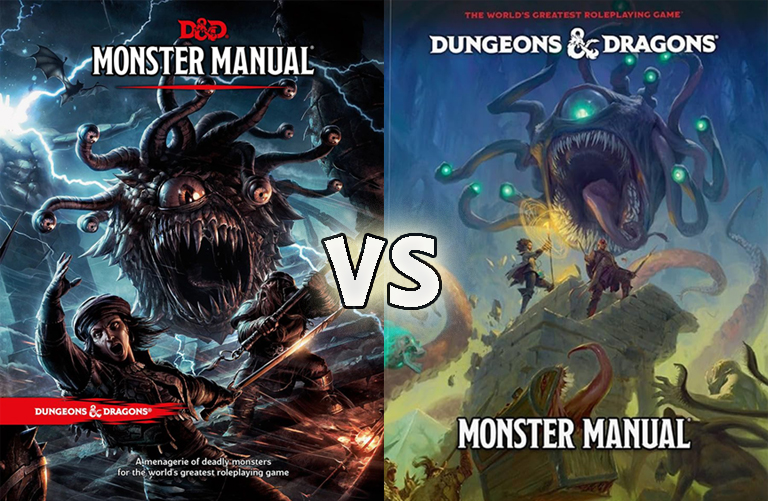
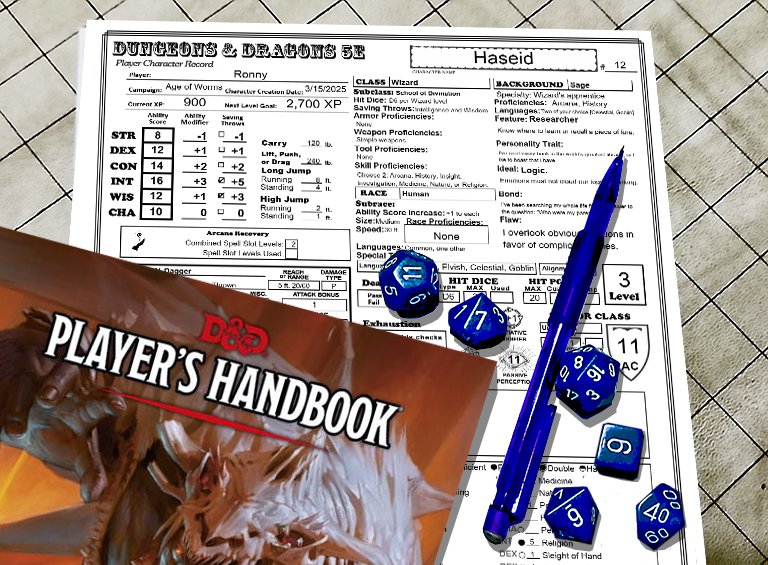
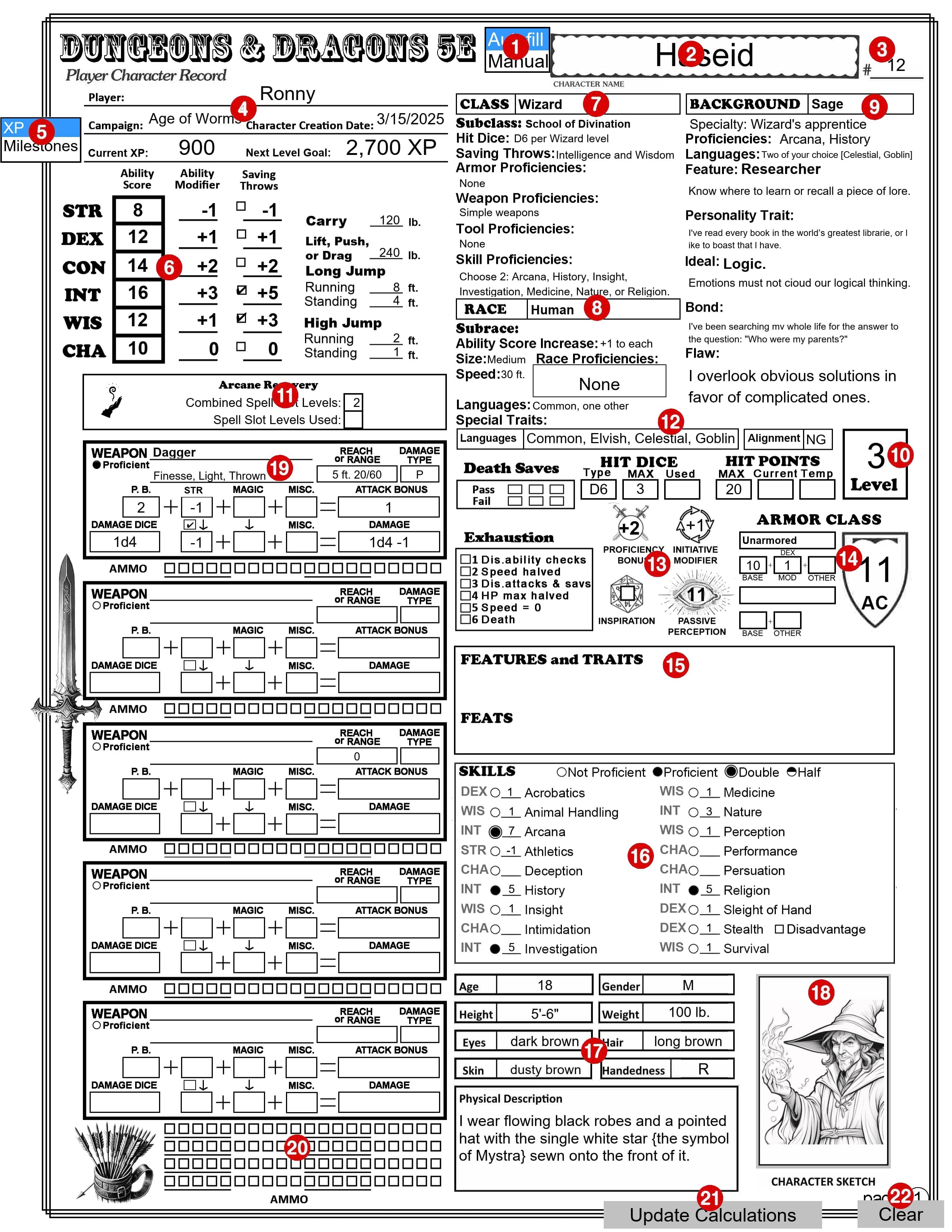













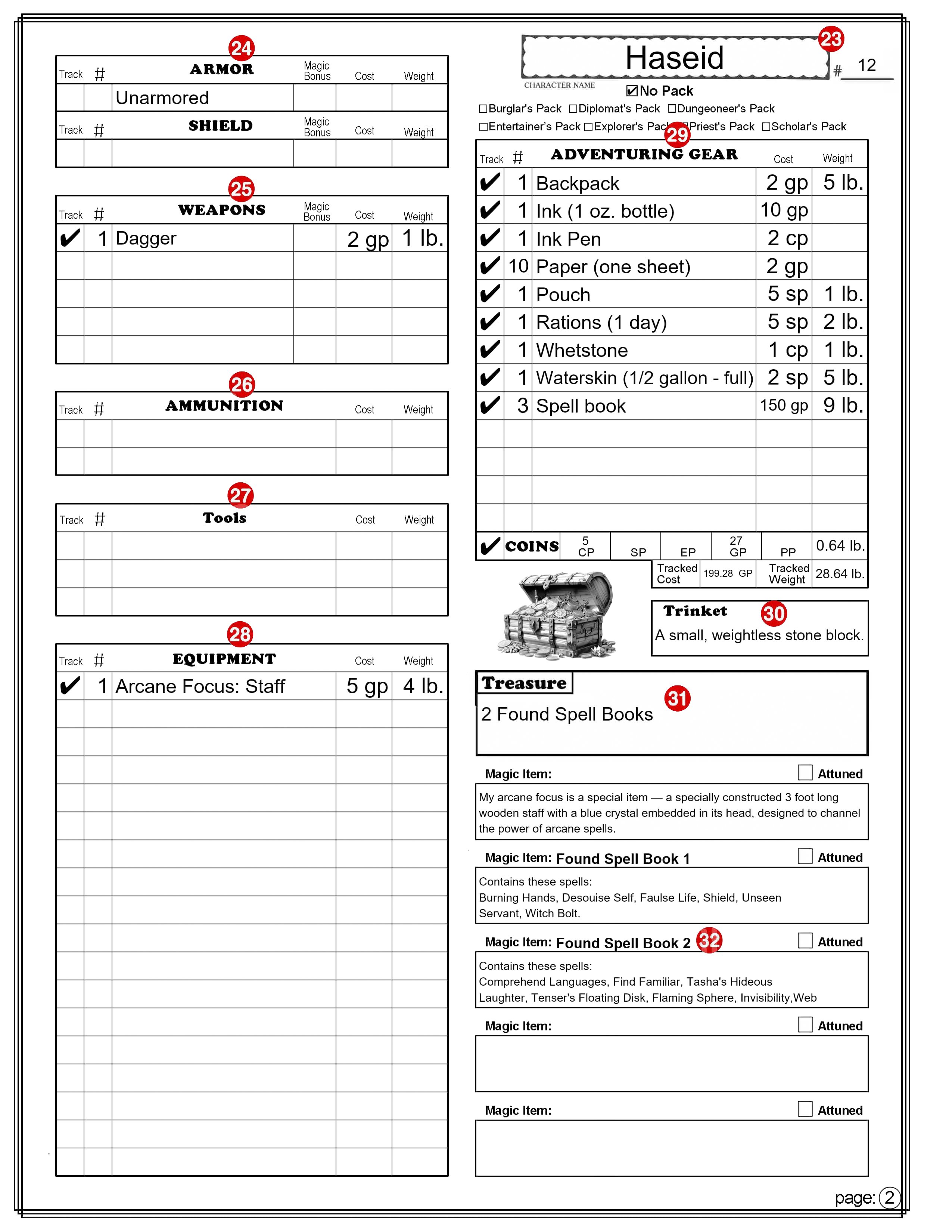
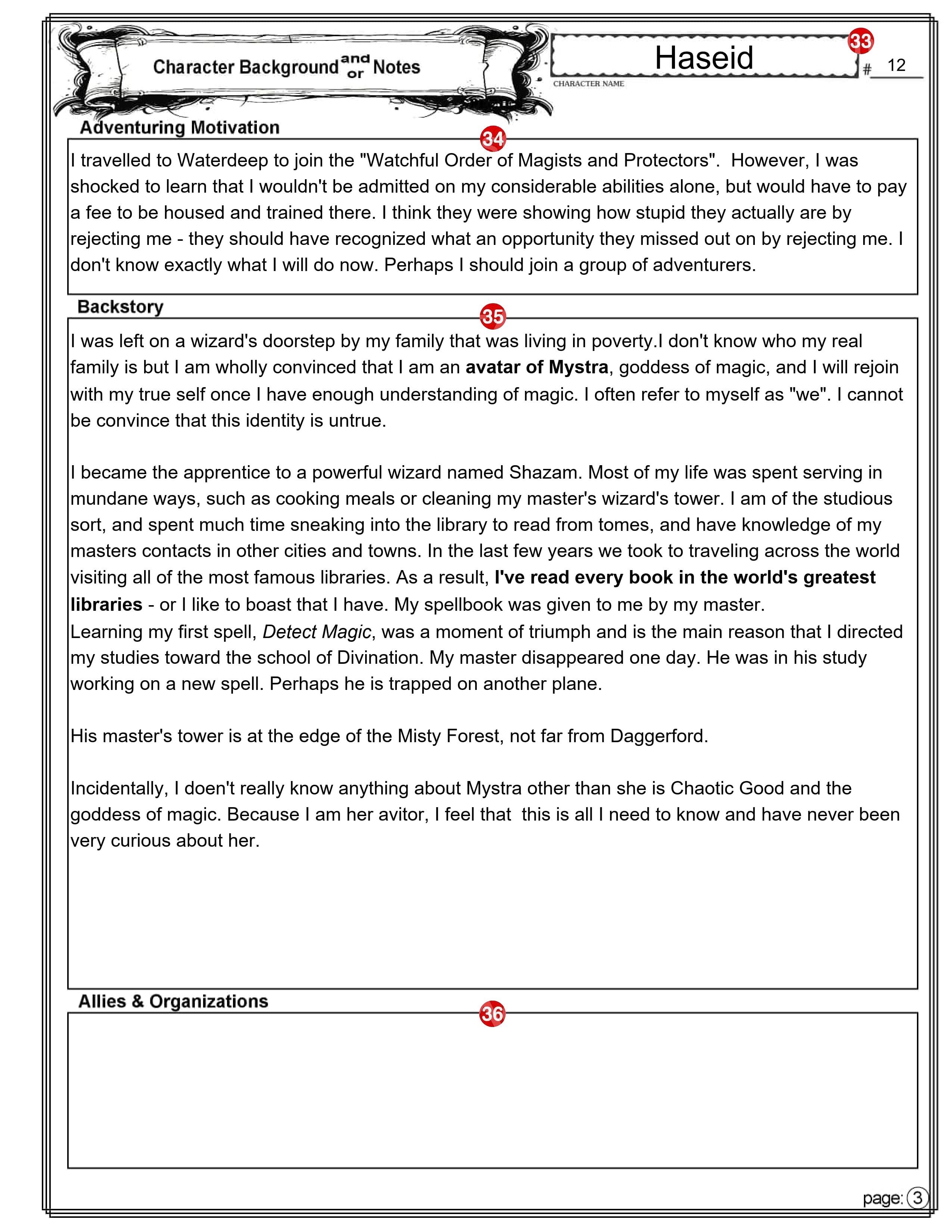
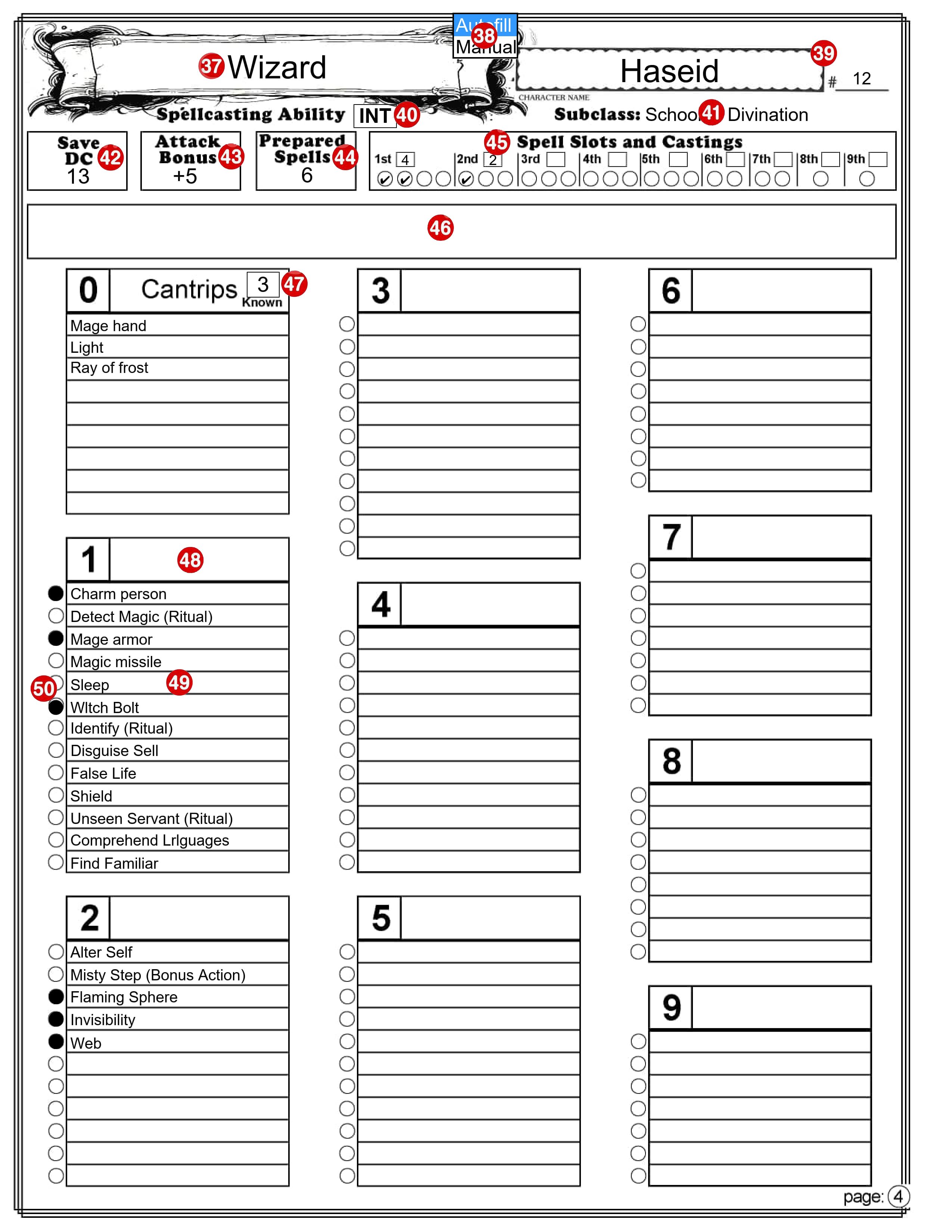

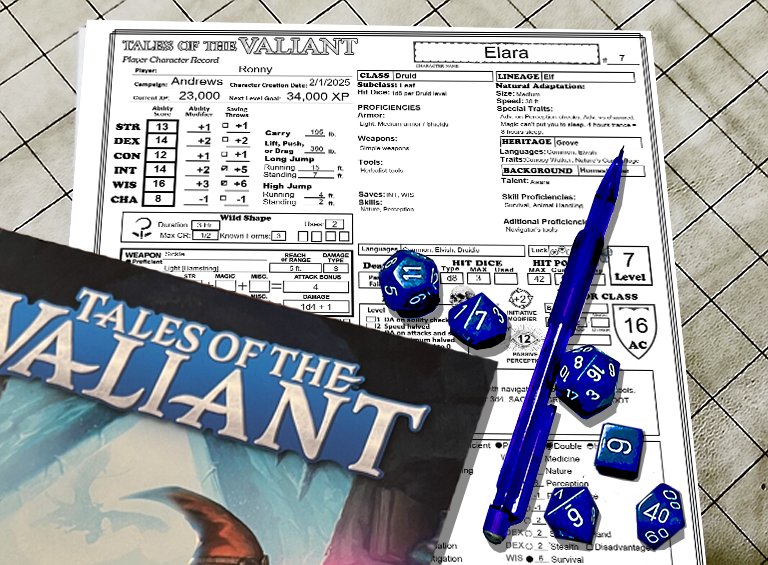
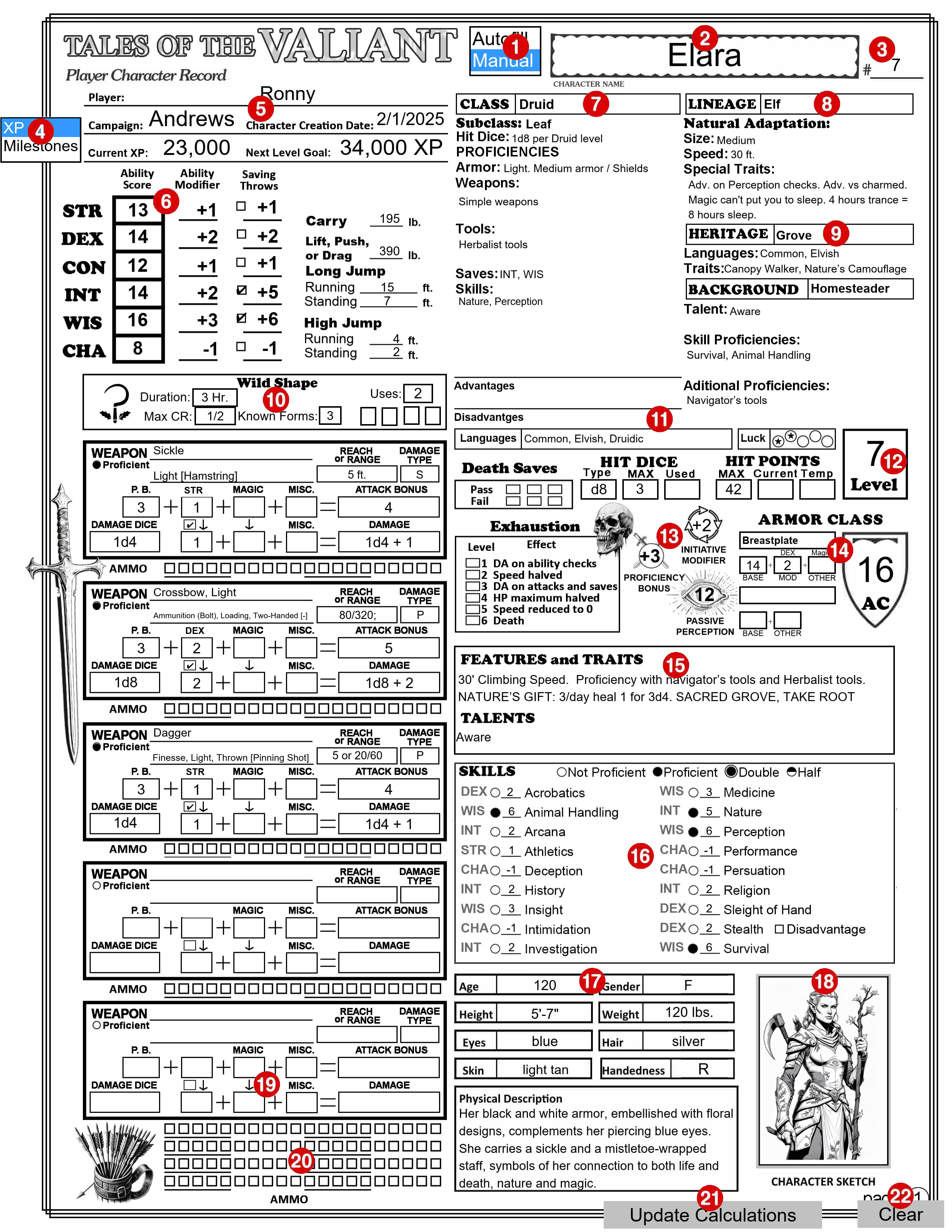













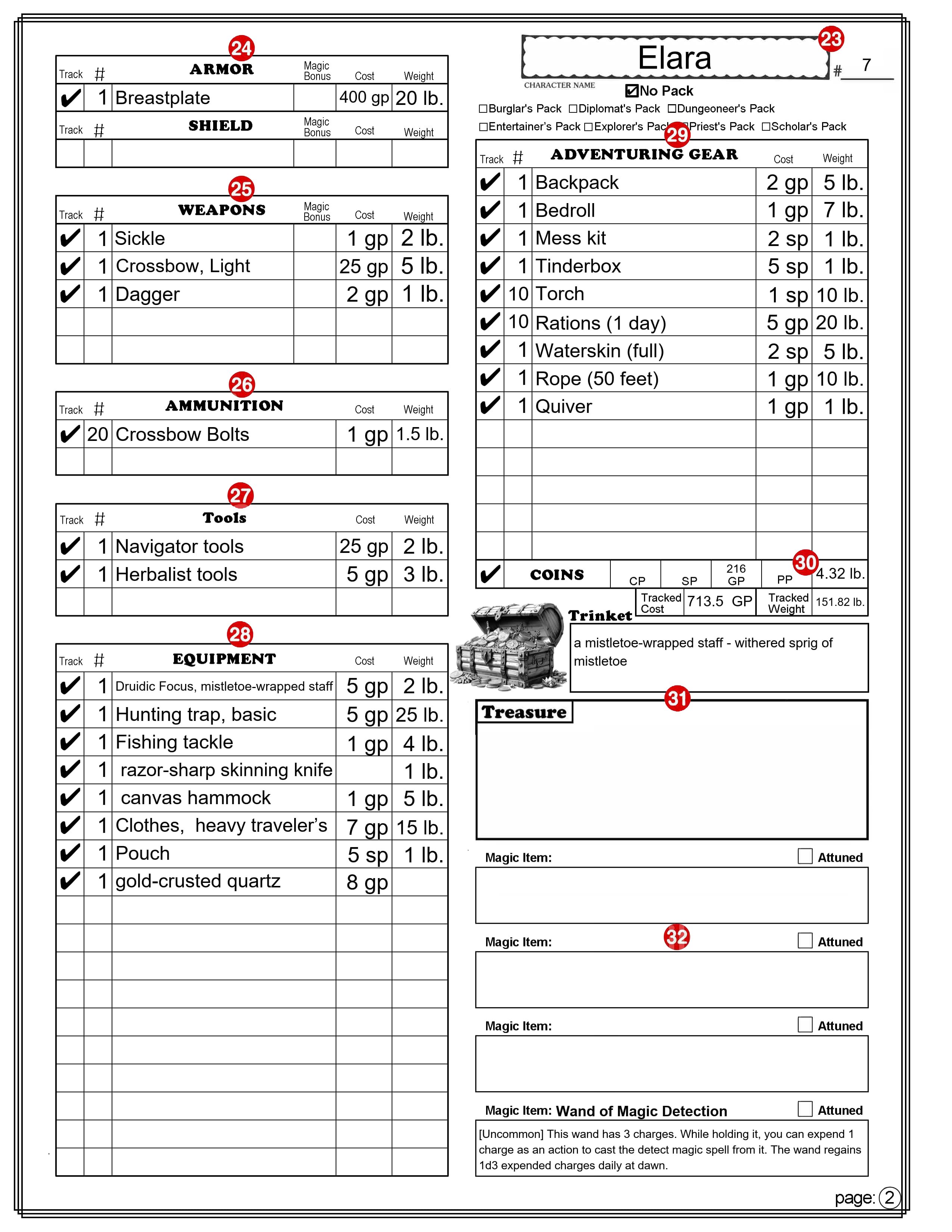
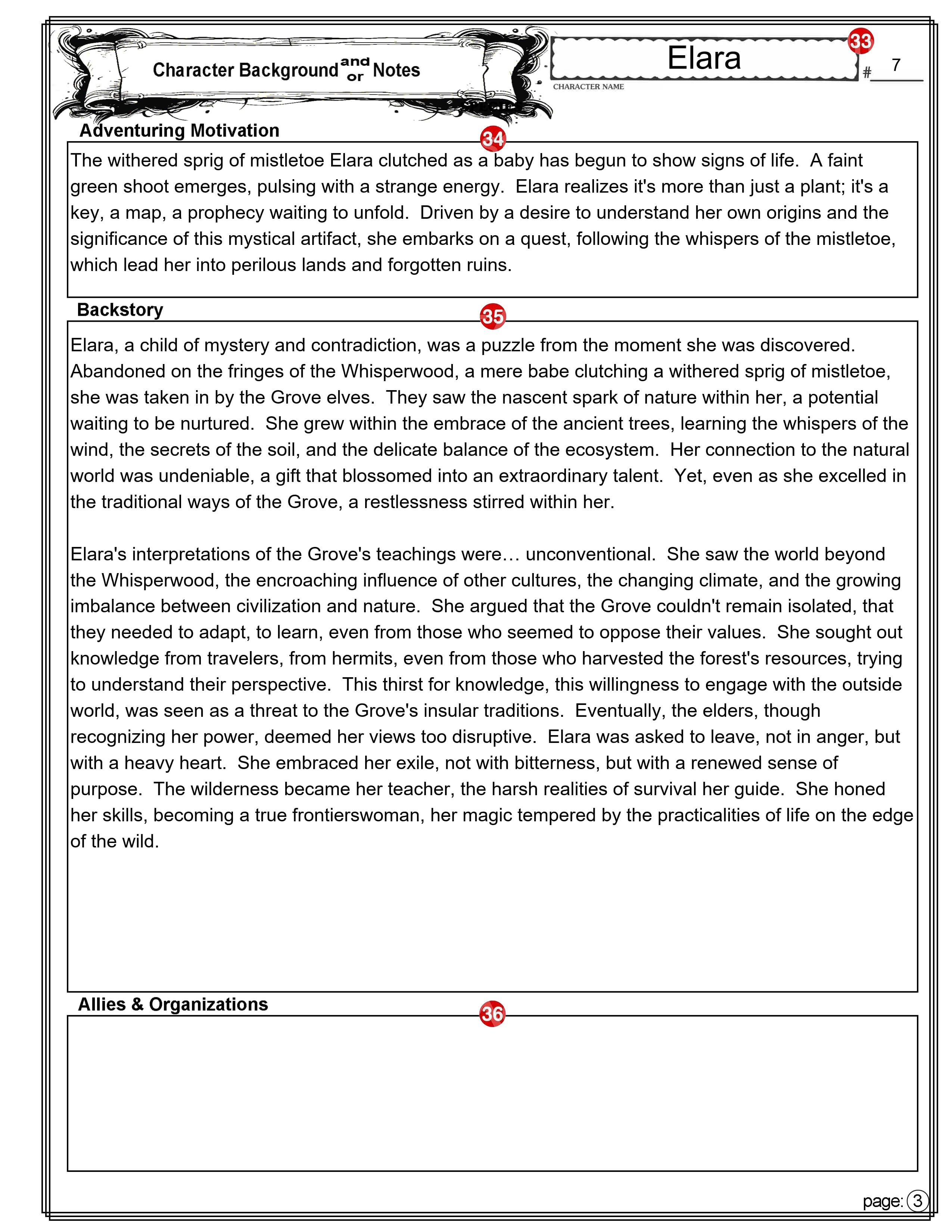
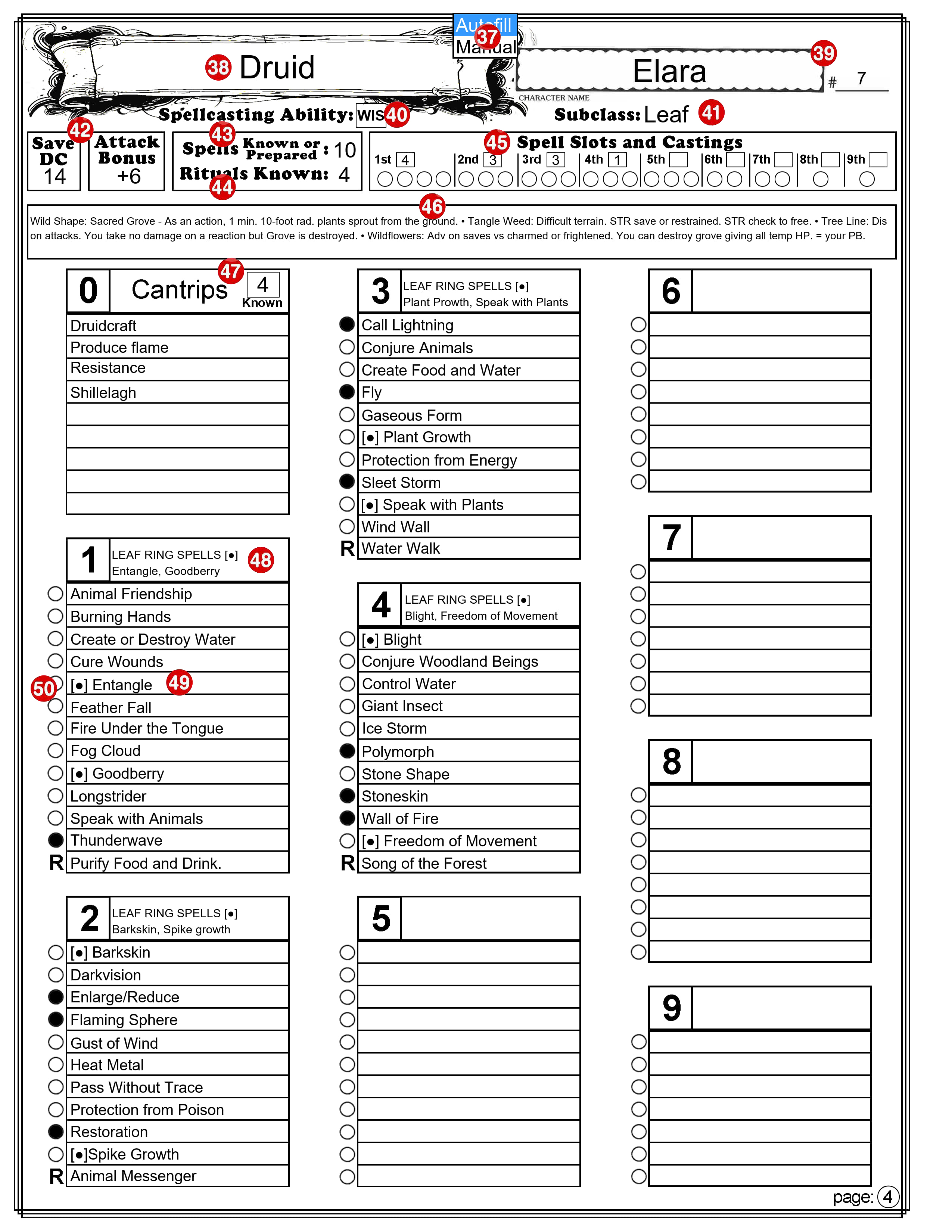















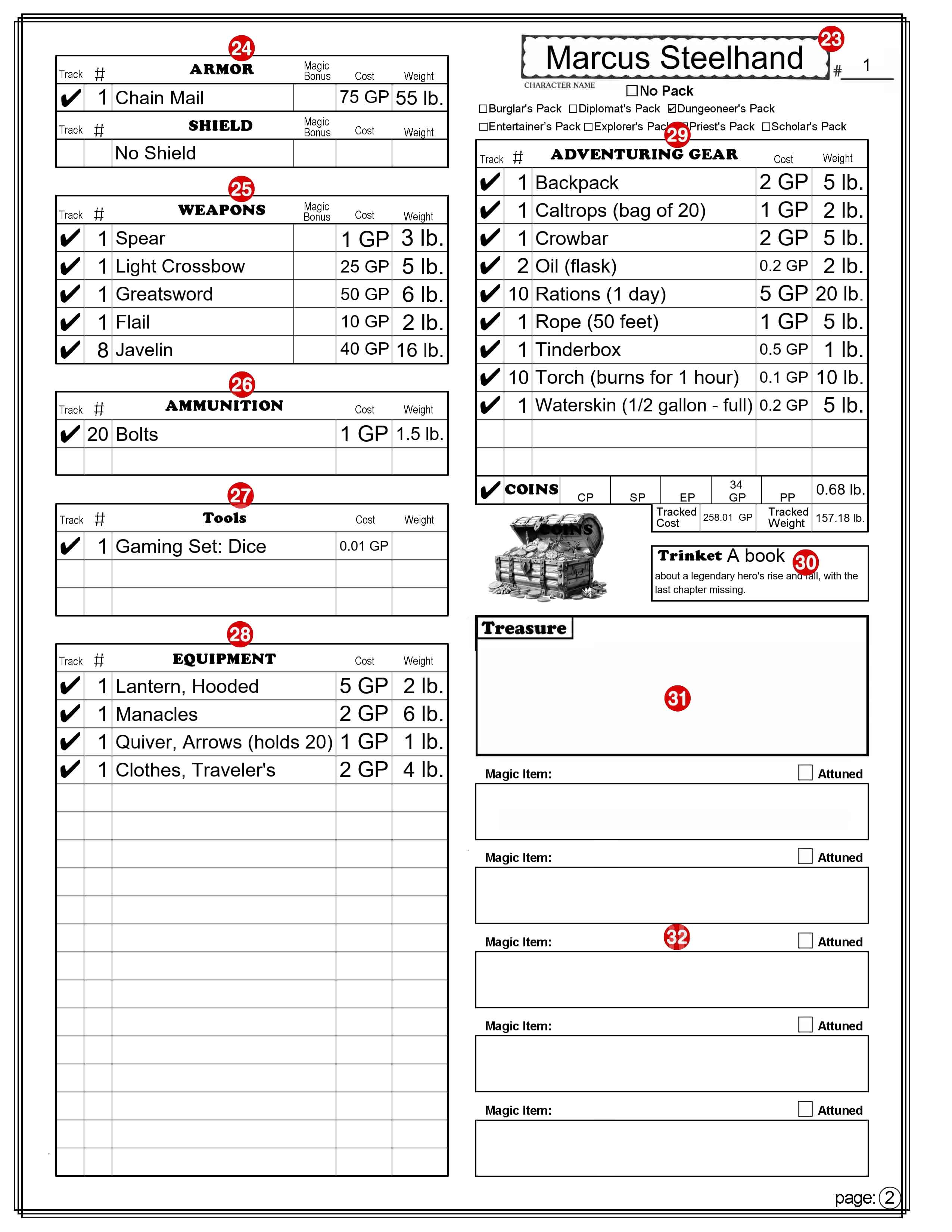
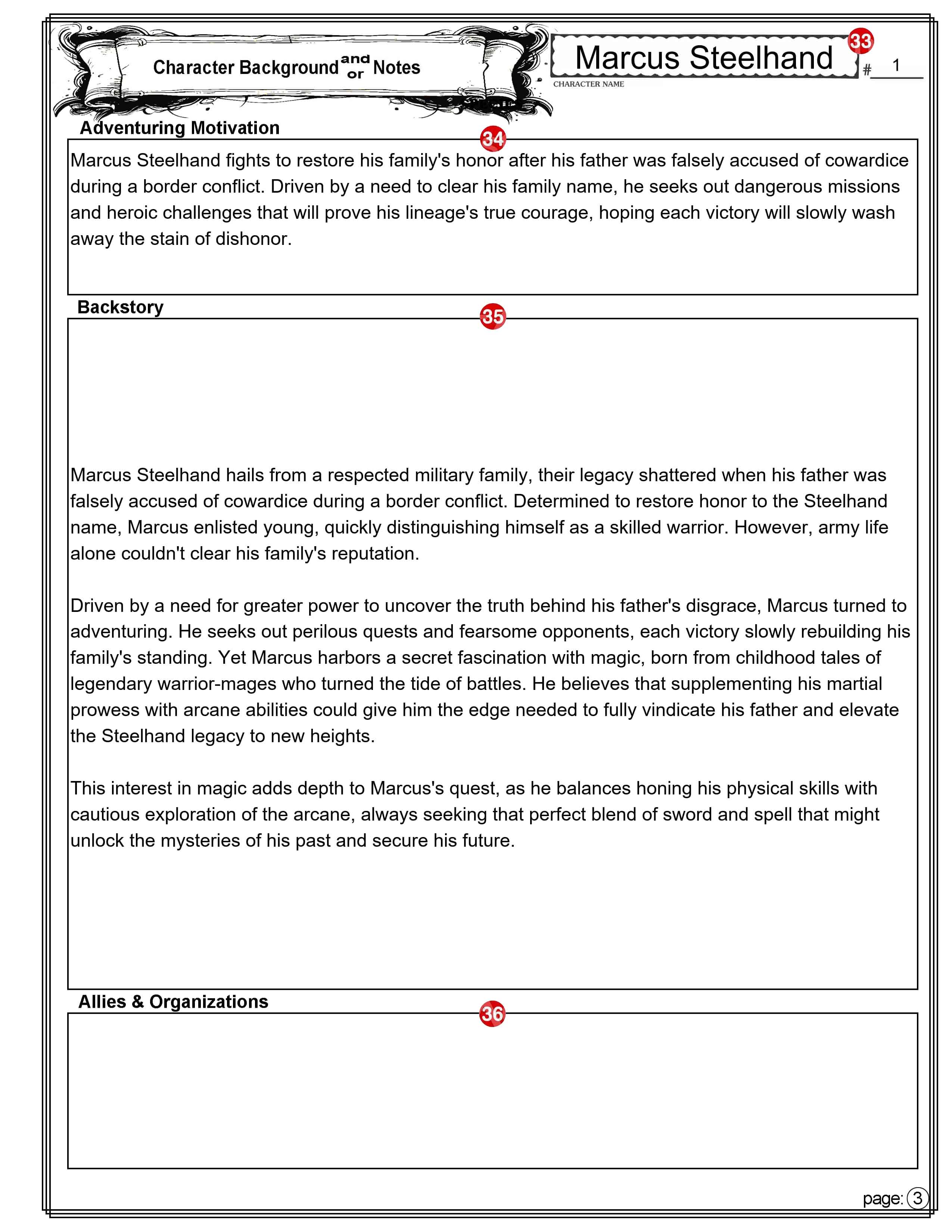
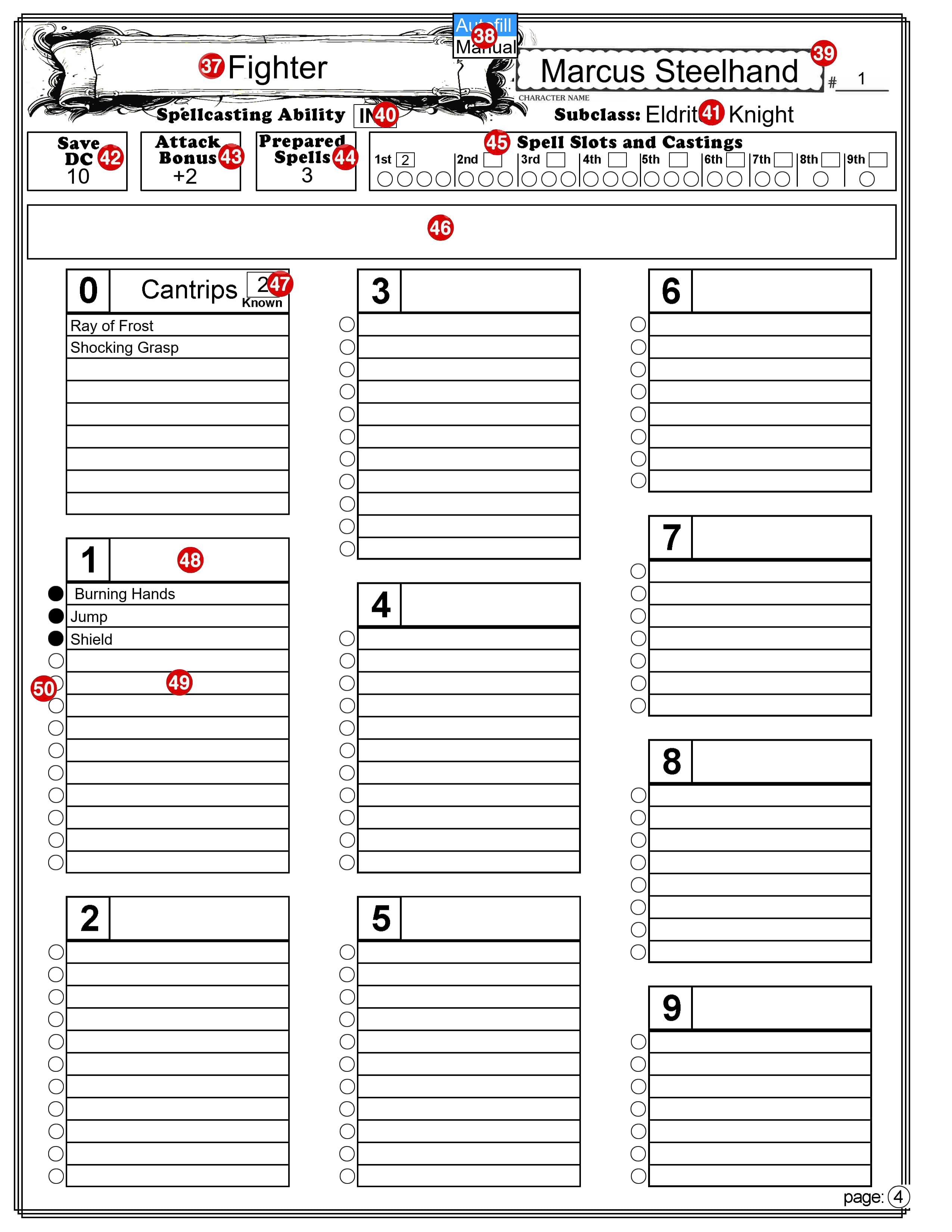


 Dungeon Master Assistance